Export the 3D model and paper spaces to a Dwfx file
This tool is accessible from the Export BIM to file command or from the AutoCAD/BricsCAD Publish command.
This topic covers the usage of both export tools and the configuration of the actual Dwfx file contents.
It is possible to export the entire project to a Dwfx file, or a single Dwfx file per part or per assembly.
The 3D model as well as the paperspace layouts are included in this export.
When writing the Dwfx file in Parabuild inside AutoCAD then part properties are written in these files (these properties are not written when Parabuild is run inside BricsCAD).
The current view in model space will be the default view in the new Dwfx file.
When objects are invisible at the time of writing the Dwfx file then they will not be exported.
You can therefore hide certain portions of the model by disabling the layers in advance.
Why does Parabuild support Dwfx?
Dwfx files can be read in many free browsers on Windows, browsers and smartphones : https://www.autodesk.com/viewers/ or https://viewer.autodesk.com/ or https://bimviewer.org/
For all available viewing methods offered by Autodesk you can refer to this page : https://www.autodesk.com/viewers?fileType=DWF
The Dwfx files can contain 3D models, sheets, properties per part, and markups can be made from within the better viewers.
For example this could be a solution for :
- Making the Parabuild 3D model review-able by anyone in the cloud, no CAD required
- Reviewing the model on systems without Parabuild (third parties or shop/site)
Using the Parabuild command to create Dwf files
We can use Export BIM to file to write a single Dwfx file for the entire model, or a Dwfx file per part or assembly.
Using the publish command to create Dwfx files
We can also use the AutoCAD or BricsCAD publish command to write a DWFx file of the entire 3D model
This file will also contain the properties attached to all Parabuild objects in AutoCAD but not in BricsCAD.
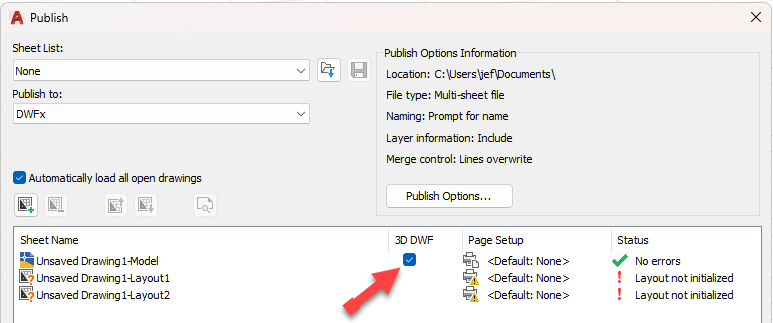
In order to write this DWFx file you have to start the Publish command and then enable the 3D DWF option for the model in AutoCAD :
How to browse the model in Autodesk Design Review
We will explain a little how to use this free viewer to see all the relevant information in the Dwfx file.
When opening a Dwfx file the viewer will look like this :
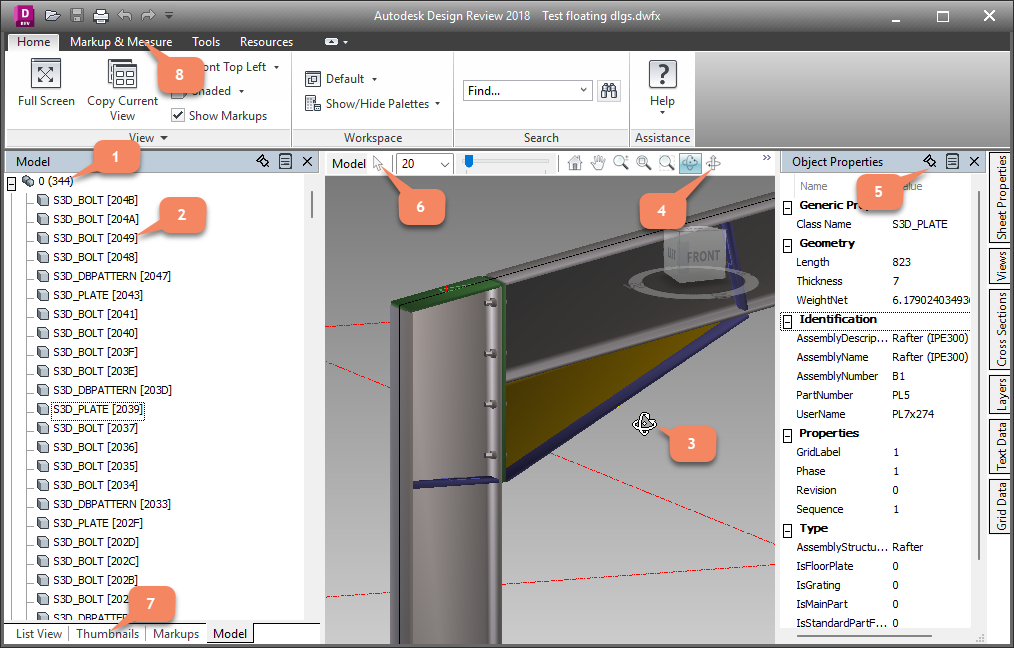
When the Model tab is open, we will see a navigation tree.
The layers of the model are the first nodes in this tree (1)
Each individual object (2) on that layer is shown as a child of the layer node
Clicking on an object in the tree will highlight the object in the 3D view, and will open the object properties of the object (5)
The object properties panel can be pinned so that it remains open all the time (5)
When clicking and dragging inside the 3D view (3) the model will be rotated.
You can switch to a better orbit tool by switching to the Turntable mode (4)
You can switch to selection mode (6) so that you can select objects in the 3D view to review the object properties that way.
At the bottom we can switch to Thumbnails and List view (7). This allows us to open all the 2D layouts that are in the Dwfx file.
We can also add markups to the file (8) but this will only work on the 2D layouts.
Changing the part properties that are published in Dwfx files
Which object properties are published in the Dwfx files are fully configurable in the Export BIM to file dialog here :
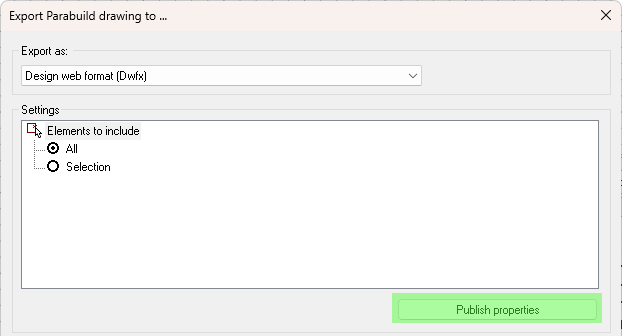
This will open the following dialog which contains a list of entries.
Each entry represents just 1 property that will be published for an object if the filters of the entry are valid for that object.
The order of the list is important because it will influence the order of the items in the object properties list inside the Dwfx file.
We will explain the purpose of each setting here after :
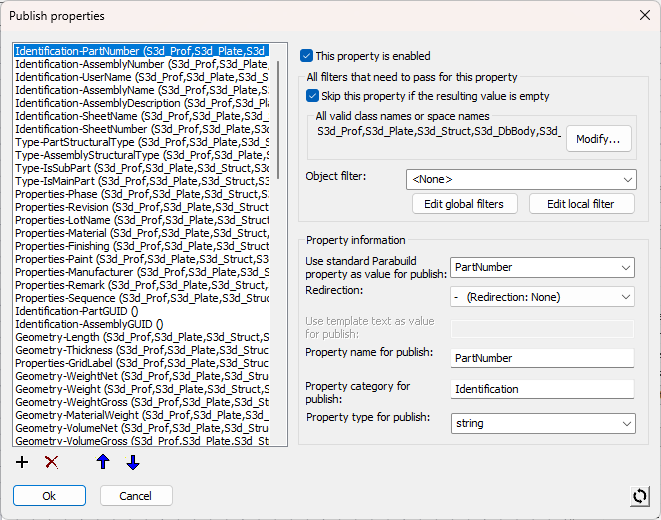
Enable this item - Toggling this off will make this do nothing so that it does not have to be removed
Skip this property if the resulting value is empty - This allows us to reduce the property list length when certain properties were not set for objects
All valid class names or space names - You can enter multiple object class names or space names here to choose to which this property should apply.
The valid class names are :
- S3d_Plate
- S3d_Prof
- S3d_Bolt
- S3d_Struct
- S3d_DbBody
- S3d_DbMacro
- S3d_DbDynArray
- PbDbViewDefinition
- PbDbTag
- The class names as described in ObjectARX which also allows parent classes for example : AcDbTable, AcDbDimension, AcDbCurve, and more : https://help.autodesk.com/view/OARXMAC/2025/ENU/?guid=OARXMAC-RefGuide-AcDb_Classes
- To learn the name of a line or polyline (LWPOLYLINE) you can use the LIST command on that object
The valid space names are :
- Modelspace
- Layout
- Part sheet
- Assembly sheet
- GA sheet
Object filter - You can use any of the predefined or custom object filters here.
Note - All of the above 3 filters need to pass in order for this property to be used. If the filter is empty then it will always pass.
Property information
This is the actual property information that will be published in the Dwfx file
Use standard Parabuild property as value for publish - You can enter any of the Parabuild properties or queries here as value. If you set this to <None> then you can use a template text instead. See below.
Redirection - When the standard Parabuild property is used then you can specify here at which level the property should be retrieved : the part, the main part, or the assembly.
Use template text as value for publish - If the standard Parabuild value was set to <None> then you can enter a free text template here that can contain multiple properties between % symbols. This works exactly the same as the Parabuild annotation text field.
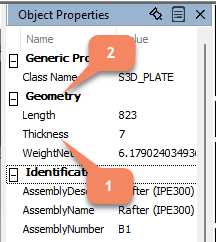
Property name for publish - This will be the name of the property (1) in the properties panel of the viewer
Property category for publish - This will be the category name (2) under which the property should be listed in the properties panel of the viewer.
Property type for publish - Set the type of value of the property here. This value type will be passed through so that the viewer knows how to interpret the data : as a distance that needs to be rounded, as a true/false value, or kept untouched like a string