
Check sheets validity
This tool will search for mistakes such as 2 sheets for the same part, missing sheets, outdated sheets, or unconnected dimensions. This will help prevent over-production, under-production, or the production of wrong parts.
This tool can be found in the sheets manager under the factory icon :
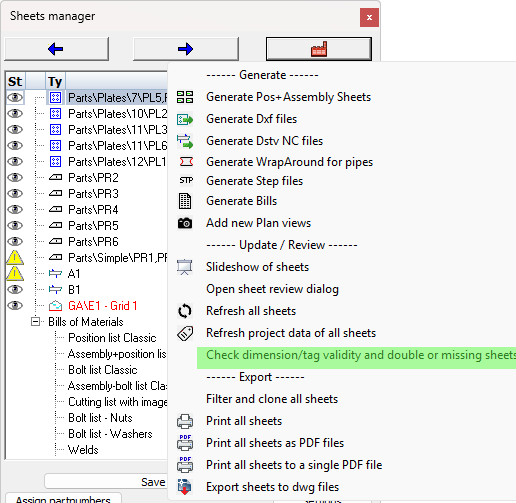
This tool will perform the following checks on all the sheets in the current drawing :
- Check whether all shop drawing views are still connected to parts/assemblies in the model, and are up-to-date
- Check whether all the dimensions and annotations are still connected to a part in the view(s)
- Check whether a particular part/assembly number is drawn on multiple sheets. Duplicate shop drawings could cause over-production.
- Check whether a particular part/assembly number is not yet drawn on any of the sheets. This could cause under-production.
We can already visually see parts or assemblies without sheets in the sheets manager. - Check whether the BOM on the sheet is not correct anymore, for tracking of changes to the 3D model
It will tell you which sheets need bill changes and thus should be pulled from the workshop.
It will show this information like this :
Sheet 'Parts\Plates\12\PL1' has outdated bill table(s). The following rows and columns do not match with the 3D model anymore:
Bill 'Position list' : Cell 'Tot' on row 1 is now '2' (instead of '1')
This capability will help you when you are in the worst kind of revision situation : Workshop drawings have been issued to the workshop, production has started, but changes need to be done to the 3D model.
All the missing sheets, expired sheets, and sheets with wrong amounts are listed by the validity checker. This list tells you which sheets to pull from the workshop and that need to be refreshed or removed entirely, and which new parts or assemblies need a new sheet.
How it works
The check sheets validity tool is to be used right after doing the revising changes to the 3D model, but before refreshing the sheets. It can be used before or after numbering and it will work in both cases. However doing it after numbering will give you a better result because it will show you the new correct amount of parts for each sheet. If you did not number, then some parts may still be without a number and will not be assigned to any sheet (you'll be warned of this separately).
It compares the 3D model to the existing sheets and does no changes to the sheets except for assigning expired views when detected.
The current bills on the sheet will be checked to verify they are up-to-date, without being updated which would be done when refreshing the sheets.
Currently this tool covers the issue of finding out which workshop drawings need to change when they have already been sent to the shop. A likewise solution for GA sheets will be added to a future release.
Note It is possible that a part or assembly has changed, but that numbering restores its original part/assembly number. The changed geometry is still detected and causes the view/sheet to be expired, which is the intended result. As a consequence of the expired sheet, this tool will say that the amount of parts on the bill has reduced to 0. But when you refresh the sheet afterwards, it will reconnect the sheet to the same part/assembly number and the bill will then correctly show the new amount of parts/assemblies.
This capability tool will be most helpful by warning you about the quantity changes on a sheet, but this will also detect changes to all other cells in the table such as names, materials and finishing.
Use this capability after applying changes to the 3D model but before refreshing the sheets.
After refreshing the sheets, the information about the differences between the 3D model and the sheets are lost, as they are now in sync.
At the end of the command a warning dialog box will appear with a listing of all the above issues that were found per sheet.
This tool will not fix any of the issues, it only provides information and changes the status of dimensions and views.