
Edit Entity and Double-clicking entities
Command - PrB_EditEntity
This is the command that is used when you would double-click an entity.
But with this icon we can call this command directly.
This tool will first check if entities are already selected.
If none are selected, then it will ask you to select some entities.
After acquiring the entity or entities, it will start the Review macro dialog box automatically if :
- A macro sphere was selected
- An entity owned by a macro was selected
For other Parabuild entities it will open the respective editing dialog box for that entity.
For example the Weld symbol dialog box for a weld symbol.
For all other entities that do not have such a dialog box (or in case a non-Parabuild entity was selected), the Properties dialog will be opened.
Behaviour when Double-clicking entities
When double-clicking a macro then the Review Macro dialog box will be opened for the macro.
When double-clicking an object that is owned by a macro, the macro that owns the part will be opened in the Review Macro dialog box.
However, pressing the SHIFT and/or CTRL keys while double-clicking will determine the behaviour of the action.
These are all the different behaviours, with an example drawing of what would happen when double-clicking a side rail :
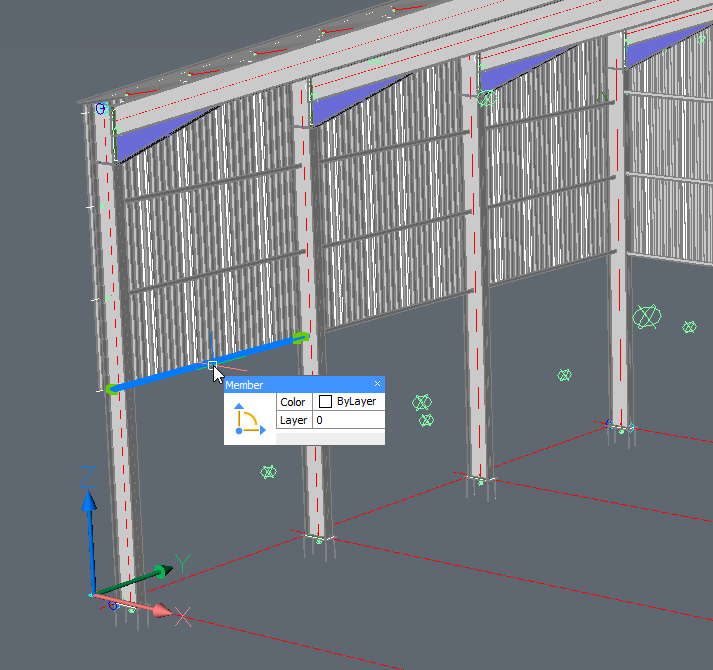
This is a Parabuild portal frame template that was fully parametrized, and we're double-clicking one of the side rails.
- Double-click without SHIFT nor CTRL pressed - Only the macro of the selected part will be reviewed. In the example, just the macro of the single side rail will be reviewed.
- Double-click with SHIFT OR CTRL pressed - All of the parts that are dependent on the same array will be reviewed. In the example the 4 side rails and the array itself will be reviewed.
- Double-click with SHIFT AND CTRL pressed - The top owning macro of the part that you selected will be opened, together with all of its sub-macros. In the example, the top owning macro is the portal frames macro so the entire drawing will be reviewed. That is because the entire drawing is fully parametrized.
Double-clicking on the edge of a cut or hole
When you double-click on an edge of a hole or cut, then the macro that owns that cut or hole will be opened for review.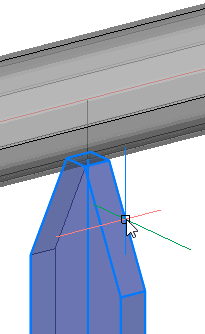
All you have to do is move the cursor's small rectangle over an edge of the cut or hole as shown below, then double-click.
This macro is not always the same macro that owns the part itself, which is why the new behaviour was added.
This double-click method will work in all visual styles, except if other objects are in front of the cut. Only the 2D or 3D wireframe visual styles can handle such a double-click case because all other visual styles, even X-Ray, will often draw faces in front of the edge that you double-click, and that makes the edge-detection fail.
The macro spheres do not need to be visible if you want to review macros. The double-click is a practical tool to review macros even when all spheres are invisible.