
Installing Parabuild twice on the same system
It is possible to install Parabuild twice on the same system.
You might want to do this before switching to a big new release : you may want to finish your current projects on the older Parabuild version while you learn and set up the new Parabuild release.
When the installation of a second Parabuild is attempted, the following message is displayed :
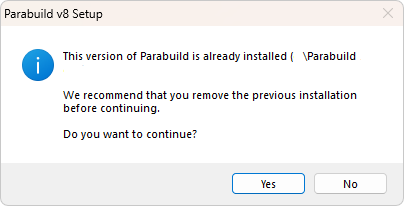
You can say yes here and make sure to choose a different installation folder.
However having 2 Parabuild installations can still cause 3 problems that you need to be aware of :
- Parabuild icons will compete with each other if used in the same AutoCAD/BricsCAD installation. Especially each time that you switch between running the old and the newer Parabuild.
Use the 2 Parabuild installations in different AutoCAD/BricsCAD installations to solve this.
Alternatively, if you do not want 2 CAD installations then the drafter can use the command PrB_Menu if they have problems with the icons : for example when the icons of the wrong Parabuild version are shown. - When installing an update of Parabuild, the update package needs to know the installation folder of Parabuild to install the update in.
It uses this registry key to learn where Parabuild is installed : HKEY_LOCAL_MACHINE\SOFTWARE\WOW6432Node\Parabuild\Parabuildv3-Path
But the folder in this registry key will be the folder of the Parabuild installation that was installed last.
You will need to be careful when installing the update, that the update is done in the correct installation folder of Parabuild.
If you use 2 installations in order to use an old version of Parabuild, then you should be careful not to update the old Parabuild version with the update package. - The second problem only relates to AutoCAD :
The properties that Parabuild shows in AutoCAD are registered in the Windows registry. But the different Parabuild installs are trying to use some of the same registry entries.This will especially be the case when both Parabuild installations are run in the same AutoCAD version.
To solve this the drafter should run the file \Parabuild\StartupSettings.exe and then press Ok each time that they switch between the different Parabuild versions. This tool will do the registry fixing (and asks for Administration privileges to do that). Failing to do this step will cause a crash in AutoCAD when the properties panel is opened for a Parabuild object.