
Quick select
Command - Prb_QuickSelect
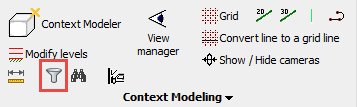
This tool allows you to quickly adapt the current selection by removing or adding certain objects from the selection.
The dialog box can stay open permanently.
It can be used at any time : when no command is active, during a commend, and even while you are inside a selection prompt of a command.
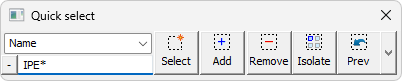
The dialog box has the following capabilities :
Filter combobox - Use this combobox to choose any of the filter methods that are listed below. You can start typing a part of a word to reduce the amount of options in the combo list. For example, if you type col then only the structural types and filters for columns will appear in the list.
Some of the items in the filter combobox are explained below :
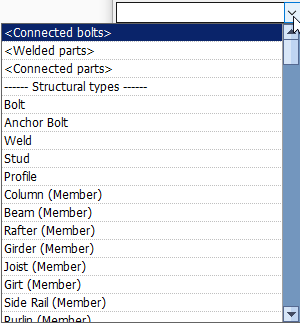
- <Connected bolts> - This filter method will search for all the bolts that are connected to the currently selected objects (bolts have a relation to parts through the hole)
- <Welded parts> - This filter method will search for all the parts that are welded to the currently selected objects
- <Connected parts> - This filter method will use the macros to find the parts that are connected to the currently selected parts
- <Macros that own cuts or holes in the objects> - This allows for example to add the macros to the selection when you are copying a plate or a profile.
It may be a challenge to know which macro owns the cuts or holes when there are many macros close to each other.
Moreover, the macros may have been hidden, and this selection tool will select or deselect them anyway.
Note that copying macros will only work well if you are also selecting all of the parts that are owned by the macro and all of the base geometries of the macro (the column for a baseplate). Failure to do so will result in a broken macro and you might as well just not copy it in that case. - -- Structural types -- This lists all of the available structural types. Each structural type can be used as a filter here
- -- Filters -- This lists all of the available objects filters. Each object filter can be used as a filter here
Value field - This field allows you to filter on all properties with a certain value and with a wildcard (*).
If you need to search all IPE shaped section then use the text IPE*
The action buttons are explained below :
 Select - When you press this button, then all the objects that match the chosen filter in the combobox will be added to a new selection set.
 Add to selection - When you press this button, then all the objects that match the chosen filter in the combobox will be added to the current selection set.
 Remove from selection - When you press this button, then all the objects that match the chosen filter in the combobox will be removed from the current selection set.
 Isolate as selection - When you press this button, then all the objects that match the chosen filter in the combobox will be added to the current selection set, and all objects that do not match the filter will be removed from the current selection set.
 Previous selections and Previous filter actions are available from this button and dropdown, as explained hereafter :
All of the Previous selection as well as Previous filter actions are available from the drop down : 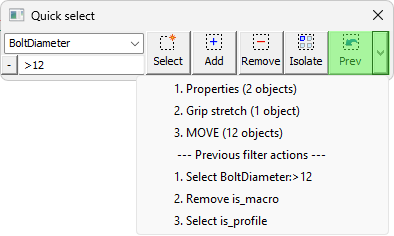
You can use this when several commands need to be done on the same objects, or, more importantly, when you cancelled or undid a command because of a mistake.
You will have access to that previous selection or action instantly, outside or from inside any command.
Clicking on the Prev button will directly select the objects that you selected during the last command or property change.
Clicking on the drop-down button allows you to see and restore the last 10 previous selections and the last 10 filter actions.
What we're seeing in the drop-down menu are 2 distinct features, each is explained below :
Previous selections
Any command that you use that asks for the selection of 1 or more objects will be stored in this list.
This includes all Parabuild commands but also all AutoCAD/BricsCAD commands such as move, copy, mirror.
The last selection that you made is shown at the top of the list so the oldest selections will disappear when there are more than 10 previous selections.
There are certain other selections that you may do outside of commands, such as when you select objects and then do a properties change on them.
These changes in properties panel are also recorded as previous selections, the modified objects are stored as a previous selection.
Previous filter actions
Filter actions are recorded each time that you click on one of the 4 quick select buttons : 
Each click that you do here will cause the action to be added to the previous actions, with a description of the type of filtering, the name, and value on which was filtered.
A big difference with previous selections is that here the selected objects are not stored but rather the filter action itself with it's filter value.
When you click on a previous filter action the entire drawing or the current selection will be queried for objects to select or deselect, so it repeats the same filtering action without having to set the filter name and value again.