
Viewing Parabuild drawings without Parabuild
When a dwg file written with Parabuild is opened in an application without Parabuild then the Parabuild parts may not be visible.
This can be the case when using AutoCAD, BricsCAD, Trueview, and online viewer tools.
The reason for this is that Parabuild uses custom objects to describe profiles, plates, bolts, views, etc., and these generic dwg readers do not know how to interpret the Parabuild objects.
There are 3 possible solutions to this problem :
1. Enabling proxy data
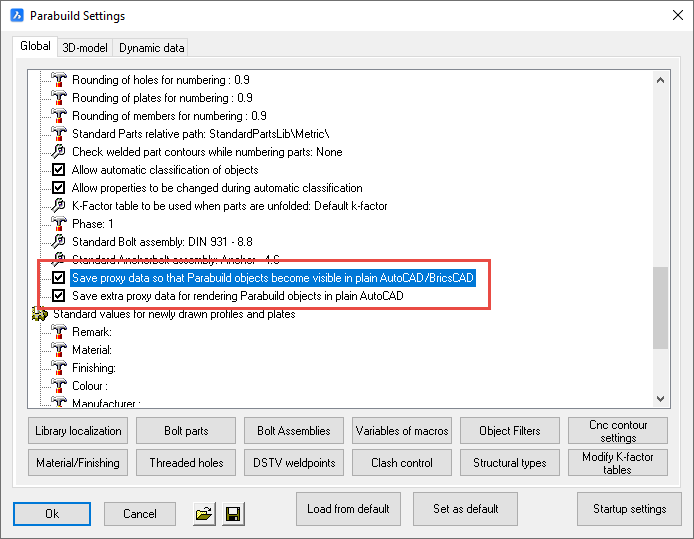
When we enable proxy data in Parabuild then the dwg file written by Parabuild will also contain appearance information of all the Parabuild parts.
This appearance information is then used by AutoCAD, BricsCAD, and Trueview to display the Parabuild parts even though these software programs have no knowledge of the parts.
The big advantage of enabling this feature is that the Parabuild drafters do not need to change their workflows while there will be a viewable project file stored in the company's network drive or cloud drive, making the 3D model accessible to all other employees without the need to ask the Parabuild drafter for the latest version of the model.
A disadvantage of using this feature is that the dwg file itself will become larger. This however does not slow down Parabuild itself.
Proxy data can be enabled in Parabuild in the Global settings :
2. Exporting the Parabuild drawing
You could Export the drawing to a dwg solids file, a SAT file, a DWFx file, an Ifc file or a Step file.
There are many viewers for desktop, mobile, and web browsers that can open these file formats.
3. Using Parabuild as a viewer
It is required to have AutoCAD Full or BricsCAD Pro installed for this solution to work.
With this solution we would install Parabuild without an active license on a system that has AutoCAD Full or BricsCAD Pro installed and licensed.
When you do not activate a license in Parabuild, Parabuild will work as a viewer.
The viewer mode of Parabuild still has the following capabilities :
- Opening and saving Parabuild drawings
- Printing Parabuild drawings
- Browsing Parabuild drawings (Zoom/pan/3D Orbit)
- Visibility manager for hiding objects or for manipulating the view
- Use quick select to find parts in the drawing
- Use the Properties dialog box for reviewing the properties of all Parabuild objects
- Reviewing the parameters of macros (but not modifying them)
- Adding native AutoCAD/BricsCAD entities to the drawing and still save them in the Parabuild drawing
- The sheets manager for viewing all the 2D sheets contained in the drawing
- Opening and printing 2D sheets
- Drawing additional objects on 2D sheets such as dimensions and annotations
The capabilities listed here are not possible with the proxy data solution (except for the viewing/browsing of Parabuild drawings).