
Ifc Export Property Sets
Ifc files can be exported from the Export BIM to file.
This topic covers the configuration of the property sets that can be attached to each Parabuild part inside the exported Ifc files.
The properties configured here apply to the Ifc file of the entire project as well as the individual per-part and per-assembly Ifc files.
Accessing the Ifc property sets dialog box
The Ifc property sets dialog can be open from the Export BIM to file dialog :
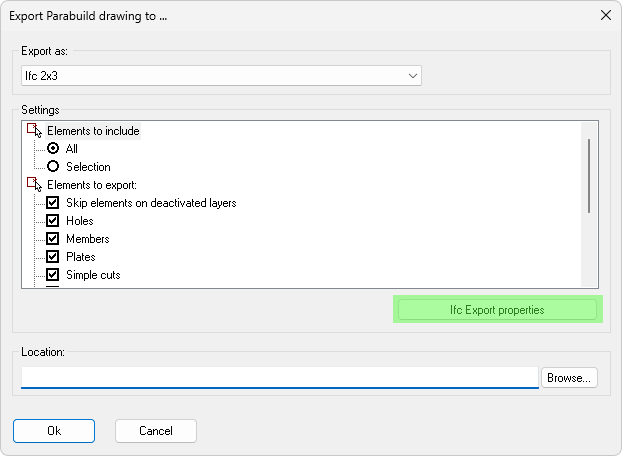
Or it can be opened from the Global settings which will open the exact same dialog box.
The Ifc Export properties dialog contains a list of entries by default.
Each entry represents just 1 property that will be attached to an object if the filters of the entry are valid for that object.
The order of the list is important because it will influence the order of the items in the property set inside the Ifc file.
When you click Ok in this dialog box then the current settings are stored in the library folder and this will be opened again the next time that you open Parabuild.
We will explain the purpose of each setting here after :
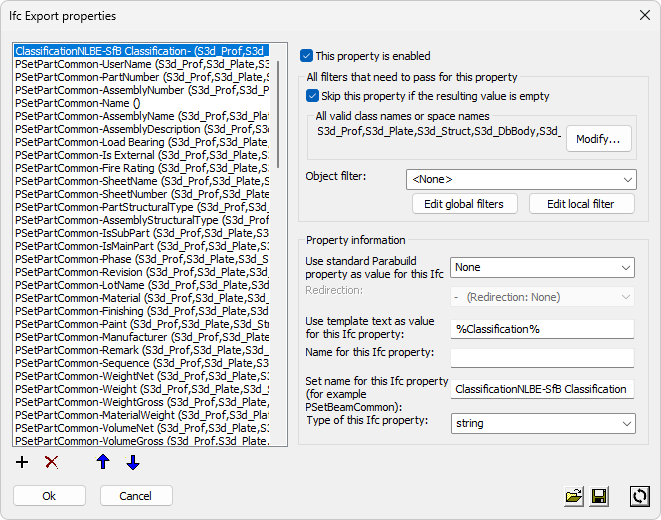
 Use these buttons to add, remove, and sort the entries in the list. The order of the items will determine the order of the items in the property set inside the Ifc file.
Enable this item - Toggling this off will make this entry do nothing so that it does not have to be removed
Skip this property if the resulting value is empty - This allows us to reduce the property list in the Ifc file when certain properties were not set for objects
All valid class names or space names - You can enter multiple object class names or space names here to choose to which this property should apply.
The valid class names are :
- S3d_Plate
- S3d_Prof
- S3d_Bolt
- S3d_Struct
- S3d_DbBody
- S3d_DbMacro
- S3d_DbDynArray
- PbDbViewDefinition
- PbDbTag
- The class names as described in ObjectARX which also allows parent classes for example : AcDbTable, AcDbDimension, AcDbCurve, and more : https://help.autodesk.com/view/OARXMAC/2025/ENU/?guid=OARXMAC-RefGuide-AcDb_Classes
- To learn the name of a line or polyline (LWPOLYLINE) you can use the LIST command on that object
The space names (modelspace, layout, sheets) are not supported for Ifc files.
Object filter - You can use any of the predefined or custom object filters here.
Note - All of the above 3 filters need to pass in order for this property to be used. If the filter is empty then it will always pass.
Property information
This is the actual property information that will be published in the Ifc file
Use standard Parabuild property as value for this Ifc property - You can enter any of the Parabuild properties or queries here as value. If you set this to <None> then you can use a template text instead. See below.
Redirection - When the standard Parabuild property is used then you can specify here at which level the property should be retrieved : the part, the main part, or the assembly.
Use template text as value for this Ifc property - If the standard Parabuild value was set to <None> then you can enter a free text template here that can contain multiple properties between % symbols. This works exactly the same as the Parabuild annotation text field. Also Expressions and functions are allowed in this text field.
In this field we can also enter Dynamic properties by entering the property name between %%
Property name for this Ifc property - This will be the name of the property in the properties panel of the Ifc viewer
Set name for this Ifc property - This will be the Property set name under which the property should be listed in the properties panel of the Ifc viewer.
Besides property set names this field can be used to write a classification instead of a property.
The classification refers to IfcClassification which is a completely different class in Ifc than a property set.
The IfcClassification is used to identify the type/purpose of a part or space using one of the classification systems such as Uniclass 2015.
As a counterpart to this classification Parabuild has it's own Structural types. But there is no automatic conversion from Parabuild structural types to the Uniclass classification or other systems at this time.
For this reason, we can create a classification per part here. You could assign classifications semi-manually by creating Dynamic properties for classifications, setting those dynamic property values automatically through the structural types, and then creating properties here that will create a classification based on the dynamic property values that were created for classifications.
The IfcClassification has 3 properties that are implemented here :
- Source
- Edition
- Name
To trigger the classification mode one has to start the set name with Classification. The text after Classification will become the source and the Classification word itself will not be included in the source name.
The actual value that is retrieved from the part (see Standard Parabuild property or Template text above) will be the Name.
There are 2 special cases that Parabuild still looks at in this name field to be more flexible :
- When the name field contains a single ';' character then the text before the ; will the the Edition, and the text after the ; will be the Name.
- When the name field contains 2 ';' characters then the text before the first ; will the the Source, the text between the 2 ; will be the Edition, and the text after the last ; will be the Name.
Type of this Ifc property - Set the type of value of the property here. This value type will be passed through so that the viewer knows how to interpret the data : as a distance that needs to be rounded, as a true/false value, or if it should be kept untouched like a string of text
For Ifc files only the following types are supported :
- string
- boolean
- int
- double
- short
- stringList
 With this button we can load a configuration file that has been stored previously.
 With this button we can save the contents of the entire dialog to a file to allow you to easily switch between different configurations.
  This button will reset all of the entries in the dialog to the built-in defaults. Use this when you made a mistake and want to revert back to the defaults.