
Parabuild library folder
All the settings behind the below buttons in the Global settings are stored in the Parabuild library folder (fe c:\Parabuild\Pb_Lib) :

But besides all of the above settings many other files and defaults are stored in the same library folder.
The folders and their purpose are explained in detail below.
Changing the location of the Parabuild folder
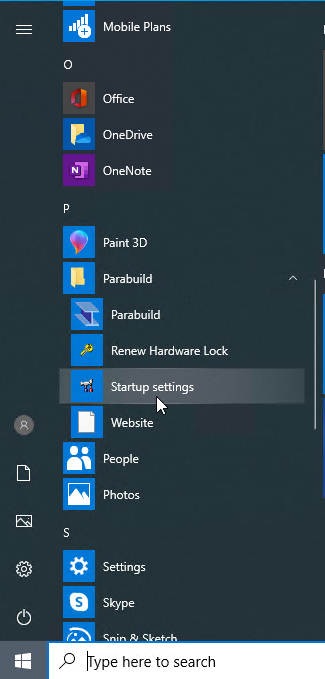
The library folder can be switched to a different location with the help of the Parabuild Startup settings tool.
The startup settings tool accessible from the global settings, but also from in the Windows start widget :
The purpose of using a folder for this is to let several Parabuild users share the same library within the same company.
If one of the users adds a new profile or a new material, then all the users will automatically get access to the new profile and material.
The procedure to do this is to first copy the Pb_Lib folder of one of the users to the shared location and then use the Startup settings tool on all of the Parabuild installations to switch the library to the shared location.
A condition for doing this set-up is that all the Parabuild installations should work with the same version of Parabuild.
We recommend to use one of the cloud drive services as the location for the shared Parabuild library folder (DropBox, Microsoft OneDrive or Google Drive).
These cloud drives will store a local copy of the library, which ensures maximum speed while using Parabuild commands.
But still if the user is disconnect from the internet such as with a laptop, he/she will still have access to the local Parabuild library to continue working with Parabuild.
The cloud drive's synchronization tool will update the local library with changes from the cloud and will upload your changes to the cloud drive in the background when there is an internet connection.
The Pb_Lib folder has the following sub-folder. The purpose of each folder will be explained here-after.
\Bills\
\Bolts\
\Connection standards\
\Cutting stock\
\Dialog Templates\Dialog design\
\Element Lib\
\Hatches\
\Macro language strings\
\Macros\
\Product codes\
\Prof\
\Sheet metal\
\StandardPartsLib\
\Struct tables\
\Structs\
\Trac\
\User sections\
\User shortcuts\
\Welds\
\Workshop drawings\
"Prof" : Profile section tables and smart section drawings
Default template files
This folder contains the following subfolders and each one has a different purpose.
This is what will happen with the files in these folders :
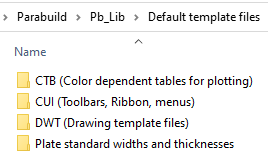
- The CTB files are automatically copied to the AutoCAD/BricsCAD support files folder when Parabuild is opened
- The CUI files are automatically loaded when Parabuild is opened (the actual loading will happen once a drawing is opened)
- The DWT files are automatically copied to the AutoCAD/BricsCAD templates folder when Parabuild is opened
- One of the Plate standard width and thickness files can be chosen as active file in the Library Localization dialog box