Standardization of Connections
When a new connection is added to your 3D model then the sizes, positions and amount of the parts in the connection will undergo standardization to save the drafter's time by setting certain defaults in the connection.
There are 3 possible ways in which the connection's standardization happens and they are explained below :
- Standardize the macros using values files (easy to use)
- Standardize method for macro value adoption within the same dwg file
- Built-in standard s for connections based on special spreadsheets
The first 2 methods are the easiest to modify yourself.
Only 1 of the 3 methods will be used.
If a saved value file is available for the base members then that value will be used.
If that is not the case but the connection already exists in the same drawing then the values of that connection are adopted.
Finally if none of the above happened, then the built-in standards of Parabuild will be used if it is enabled.
Standardize the macros using values files (easy to use)
It is now possible to easily save connection values as defaults that will be loaded when the same connection is applied to the same size members in the future. The purpose is to have the configuration of the macro values stored and automatically re-used for commonly used profile sizes.
We will explain the purpose and workings of the new defaults system with an example.
Goal
This is an example macro that we get when we insert a new connection between these 2 profiles :
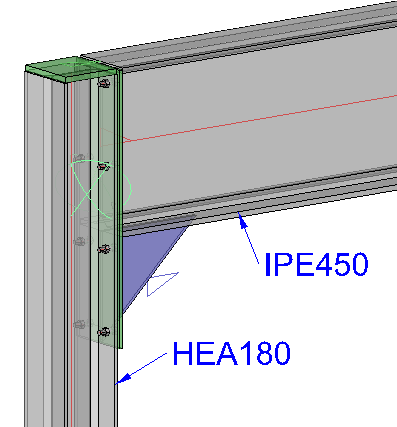
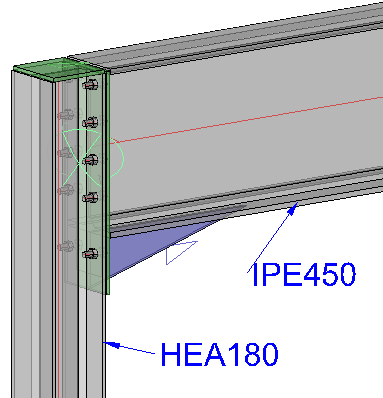
We want Parabuild to always use the macro with the following values, but only when the columns has an HEA180 section and the beam has an IPE450 section.
The macro has more bolts, a different bolt size, different plate dimensions, etc...
These sizes are specifically tailored to the column and beam sizes :
Work method
1) In the macro dialog that has the correctly configured values, we click on the save button :

2) In the save dialog we switch to the Filtered defaults saving method, and we enter a name for this default.
The name of this file does nothing for the filtering itself. You would enter a logical name here for yourself that includes the section names so that you can update or delete the file at a later time.
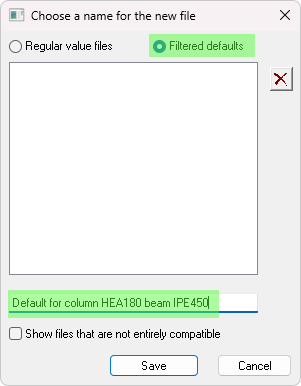
3) Save the file and that's it! In the future when the new connection is created on these members then we will see the new defaults being used :
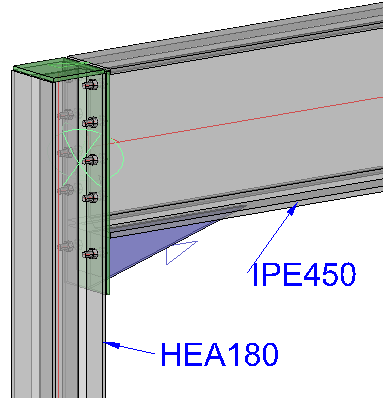
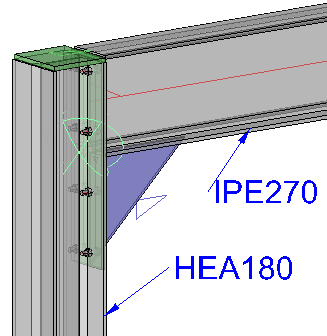
Whereas for a connection with different member sizes, the new defaults file is not applied but instead the Parabuild built-in defaults :
How does the filtering work?
While you save the defaults file, there are 2 kinds of filters being saved :
- The macro name is the first filter. If this name does not match the new macro then the file would not be used. The name of the macro is shown here :

- The names of the base profiles are stored in the file in the order of selection. The amount of profile names thus depends on the macro as there are macros with 1, 2, 3, 4 or 5 base profiles.
In this work method you would sometimes have to save many default files so a logical naming convention that includes the base member names would be advised.
Method for macro value adoption within the same dwg file
This feature will also help with standardization of the macros, but this time from within the same drawing only.
When active, then these commands may use the macro values of existing macros in the same drawing :
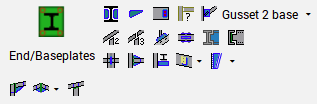
The condition for this re-using of the values of existing macros are :
- The global setting needs to be active and/or the macro setting needs to be active. See below
- The macro names need to be the same
- The macros need to have the same amount of base profiles and they need to have the same section type or size
Note There are now in total 3 different ways in which the default values of new macros can be set automatically, but only 1 of them will be used in this order :
- Saved macro defaults (new in v9)
- Defaults from the current drawing (new in v9)
- Defaults from older spreadsheets
The first default system that succeeds at successfully setting the defaults of the macro will cause a stop on defaults for that macro. The other defaults will not be applied to that macro in such case.
Note This system will only work on macros that have at least 1 base profile. Besides that the macro can also have another type of base such as a plate, a point or a line. It will not work on macros such as railing on a line or stair on a line, but for those you can still manually load saved defaults.
The global setting is located here :
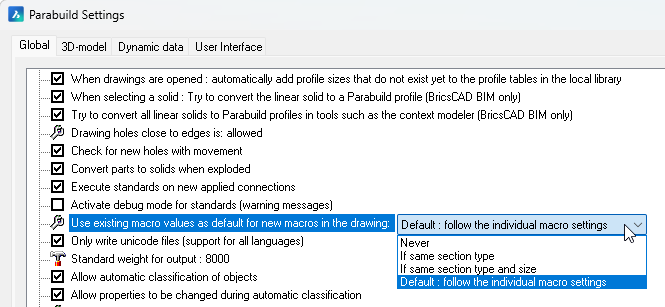
The different options are explained here :
Never - This will always disable the defaults from drawing behavior. The setting in the macros will be ignored in this case.
If same section type - When the base profiles all have the same section types (I, W, Channel, Pipe, Tube shape) then the existing macro will be used as default
If same section type and size - When the base profiles all have the same section types and size then the existing macro will be used as default
Default : follow the individual macro settings - Whether defaults from existing macros is disabled or not is determined by each macro in the library. The setting inside the macro is explained below. But the default of each new and old macro is set to default there too. This effectively means that it is enabled as "If same section type and size".
The setting in the macro itself is located here :
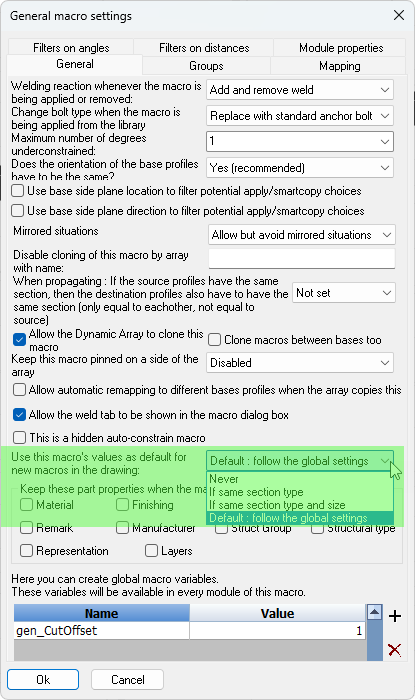
The different options are explained here :
Never - This will always disable the defaults from drawing behavior for this macro. The global setting will be ignored in this case, for this macro.
If same section type - This option will only be used if the global setting is set to Default. When the base profiles all have the same section types (I, W, Channel, Pipe, Tube shape) then the existing macro will be used as default
If same section type and size - This option will only be used if the global setting is set to Default. When the base profiles all have the same section types and size then the existing macro will be used as default
Default : follow the global settings - When this setting is set to default and the global setting too, then this effectively means that it is enabled as "If same section type and size".
Built-in standards for connections based on special spreadsheets
The connection standards is a collection of rules that can automate filling the values of dimensions and components in connections.
Below are some examples of things that can be automated:
- Plates shouldn't be too thick or too thin.
- Plates can not have a width of 137.4 but should be 140, or 150
- Bolts need to have a certain diameter, and need to be at predetermined distances from the edge and from each other, depending on the situation
These are common modifications, which we can easily write in rules.
It is important to know that the standard system does not carry out an analysis of the structure. It is only a tool to automate repetitive modifications. To use the standards you do not need to do anything; initially they are activated for you and changes are applied to new connections that you apply.
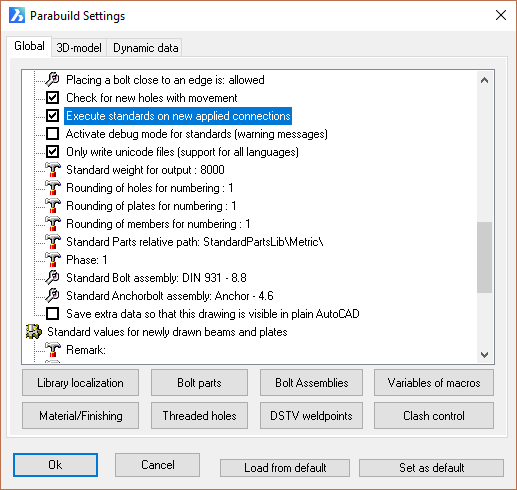
Deactivating the standards is possible in the general Global Settings dialog box using the checkbox: Execute standards on new applied connections: