
Bills of Material settings
This topic explains the settings on the Bills tab of the Document generation Settings dialog box.
This tab contains all the settings for all of the different types of reports that can be generated.
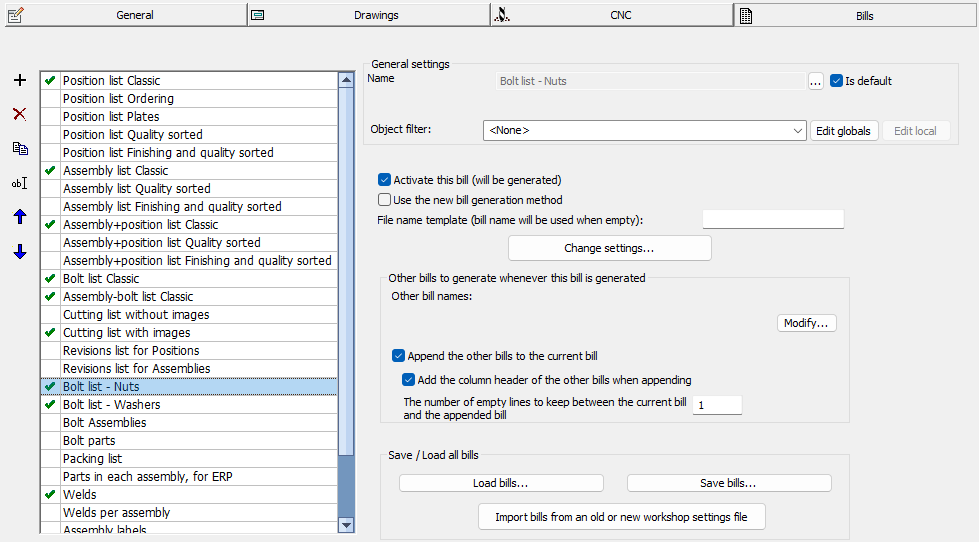
The list contains all of the bills that can be generated, but not all of them are active.
When a bill is activated with the checkbox then the bill will become visible in the sheets manager.
All of the options for each bill in this list are explored below :
Activate this bill - The bill will become visible in the list of the Sheets Manager, so that it can be generated by double-clicking on one. The Generate Bills tool will generate only the active bills too.
Object filter - You can use these filter tools to filter the actual contents inside the bill. For example, we could filter out all profiles from a plates bill. Or we can filter out the parts with concrete material for a steel ordering list. This tool is explained in the Object filtering topic.
Use the new bill generation method - Starting from version 7, it is possible to activate the new generation method for each individual bill. See the Bill Formatting Options topic for more information about this
File name template (bill name will be used when empty) - Enter the filename that should be used when this bill is generated.
The filename should be entered here without the extension.
The location of the file will be in the project's folder, so only a local folder can be entered in this field using '\'
This field may contain project data names when entered between %%.
Other variables that are allowed are :
- %PrB_3DFoldername%
- %PrB_3DFilename%
- %PrB_Date%
- %PrB_Time%
- %language%
- %outputLanguage%
Change settings - Here you can customize the Formatting options which includes: Bill type, Columns, Columns order, Column sorting options, and Sub-totals
Other bills to generate whenever this bill is generated
Other bill names - You can choose any other bill here, which will be generated together with this bill. This can be particularly practical when we need to merge a bolts bill with an assembly bill for a full report. See the below options for merging the bills.
Append the other bills to the current bill - Activate this to merge all the other bills with the current bill
Add the column header of the other bills when appending - When active, the header of the appended bills will also be appended. This is advised when the columns of the merged bills are not the same
Number of empty lines to keep between the bills - The number of empty lines to keep between each bill. It will be better to use these empty lines this when the bills do not have matching columns
Load bills - Load a file that contains a set of bills. These files are different from the normal output settings files that are saved using the buttons at the bottom of the dialog. This type of file only contains bills and no other output settings, whereas the normal output settings files will contain virtually all information in the entire dialog box which includes the sheets, CNC files, etc.
By loading or storing just the bills, we can introduce different bills into the output settings without touching all the other settings for sheets and CNC files.
Save bills - The current bills will be stored to a separate file that contains the bills only, and not all the other output settings.
Import bills from an old or new workshop settings file - With this button we can load the bills from the normal output settings files, but this will load only the bills from that file. All the other settings for sheets and CNC files in that file will be ignored. This import method also allows us to import the bills of older output setting files that were created with Parabuild version 7 or older.