
Refresh Views
There are 4 methods to refresh the view(s) of a 2D sheet.
- By right-clicking on a sheet in sheets manager
- By right-clicking on a view (if the BricsCAD/AutoCAD context menu is enabled)
- In the properties panel of the view
- By pressing the <F5> function key while 1 or more views are currently visible
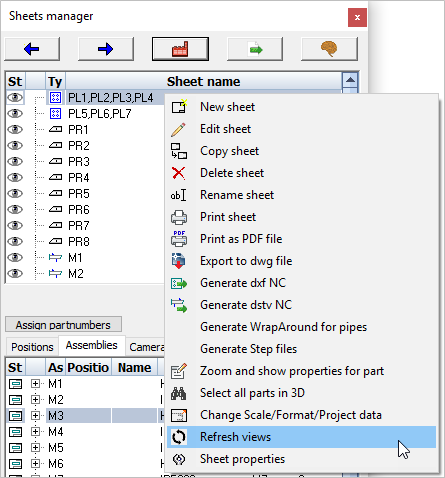
On a GA drawing
When you perform this function on a General Arrangement view, then the entire view will be refreshed. All the changes you made to the 3D model up to this point will be adopted by the view(s).
While updating the view, Parabuild will keep the dimensions and annotations that are drawn on the view and if necessary they will be moved, stretched, and rotated.
It is possible that the connection between 2D view and 3D model is lost. This happens when a 3D model was deleted. Or it might happen when a 3D model falls out of scope of the camera. In this case the dimension remains untouched and the value of the dimension will contain '?' because it becomes immeasurable.
On a shop drawing
When you perform this function on a position- or assembly workshop drawing, then the number of parts in the bill of the sheet will be recounted. The 2D views on the shop drawing will not be renewed because the views are connected to a position or assembly number.
When the subject of a sheet, the 3D part or assembly, doesn't exist any more, then Parabuild will search for an equivalent 3D part or assembly automatically during the refresh operation. There is no user interaction needed in this regard.
Dimensions and annotations connected to views will be automatically be adapted to the changed geometry only when needed. Dimension updates are done as conservatively as possible to preserve the drafter's intent. The new sheet refresh makes updating shop and general arrangement drawings after model changes much easier and faster.
The slope of dimensions will now also be automatically adjusted when the rotation of the dimensioned geometry has changed. Similarly, the location of part-linked section cameras such as for endplates will be automatically recalculated.
Shortened part and assembly views that were originally shortened as a group will also be shortened as a group during refresh, if their respective shortening settings are still consistent with each other.
There is extensive support for shop drawings made in older versions as well, especially if the sheets are refreshed before extensive model changes are done. This was tested with sheets from v7 and above.
Another new option is to automatically copy sheets during refresh when a part or assembly number has changed and split into 2 or more different parts/assemblies with different numbers. These copies will each be updated for their respective new geometries.
After refresh there is an audit that checks for unconnected annotations and dimensions, parts and assemblies that have double sheets or are missing from the shop drawings.
Refreshing existing sheets is faster than deleting and regenerating shop drawings from scratch, both for the computer and the drafter, but the main use for refresh is to preserve any manual cleanup or dimension changes done to the sheets. Revisions to the model will now become much easier to handle.
Note that when you want to refresh sheets that were generated with an older version of Parabuild, then before making model changes it is best to first refresh the old sheets with these 2 settings deactivated to force a full refresh and update all views to the current version :
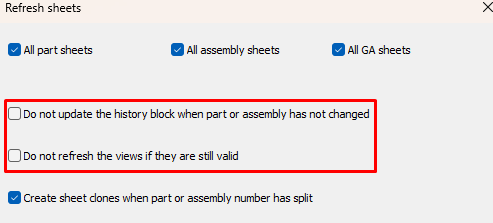
And after this first refresh you can start applying changes to the 3D model. This ensures that the sheets are now as good as version 9 sheets and refreshes after that will occur with full functionality of version 9. If this refresh is not done in advance of model changes, future sheet refresh may not be able to update all sheets if the model changes are extensive.
Notes and tips for refreshing sheets
- There is a new filter to find wrong dimensions/labels quickly in QuickSelect: IsInvalidDimOrLabel
- Parabuild may prefix sheets with "(REVIEW)". This usually happens when none of the views on the sheets could be updated (and all were set to outdated).
For these kinds of sheets, first check if that part/assembly number still exists.
One situation may be that two different numbers became merged number with more occurrences, so one sheet got higher counts and the other sheet became redundant.
Or some parts may have been removed from the model altogether.
For pre-v9 sheets, it may also be possible that a sheet could not be linked to it's source part or assembly because it has gone through too large changes for Parabuild's automatic detection to work. Starting from v9, these links are stored in the drawing. - Parabuild does not yet automatically create new dimensions for new geometries in the part/assembly during refresh
- Parabuild does not yet automatically remove annotations/dimensions/extensions for removed geometries of parts/assemblies.
- Views of deleted parts/assemblies will be set to outdated/invalid, and the sheet will be tagged with

- Dimensions that are not connected to view geometry will not be automatically adapted (dimension will be set to invalid and the sheet will be tagged with ), make sure to work with osnap when adding dimensions o avoid this.
- Before refreshing older shop drawings remember to set your sheet naming templates first in general settings, because refresh will fill the sheet name template field from settings if it is empty
