
Right Click on a 2D sheet
When you right-click on a 2D sheet from within the Sheets manager  you can perform a range of actions on the sheet.
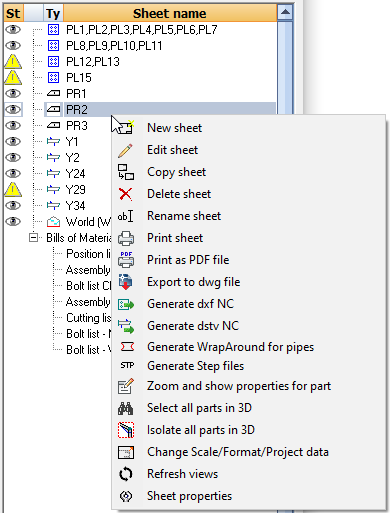
Most of these functions can also be executed on multiple sheets simultaneously.
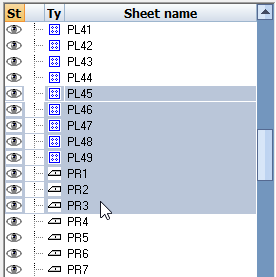
To do this you first need to select the first sheet, press and hold the SHIFT key, and then select the last sheet : all sheets within the chosen sheets will be selected. Now click the right mouse button to perform an action on the sheets.
We will explain in more detail the available actions :
 New sheet - A new empty sheet will be created - you will be prompted to:
- Choose the type of sheet from the drop-down options
- Choose the sheet format (Sheet size)
- Choose a settings group from the drop-down options
- Select a unique sheet name
 Edit sheet - The sheet will be opened for editing (this is the same as double-clicking on the sheet in the list).
Review sheet in separate dialog - See this topic for additional info about this tool
 Copy sheet - Allows you make a copy of the entire sheet.
 Delete sheet - The sheet will be removed.
 Rename sheet - Use this to change the name of the sheet. The name must be unique and should not contain any of the following symbols : < > ? ; / \
Filter and clone sheets - Filter and clone sheets allows you to make copies of a certain sub-selection of sheets such as a particular phase.
The cloned sheets will contain the correct amount of parts for the filter that you chose, and sheets without parts that passed the filter will be skipped. This allows for workflows with fewer sheets to create and clean up, and only generating the filtered clones when needed.
The mechanism works exactly the same as Filtering before printing, but with this tool the sheets are cloned and kept.
This allows you to review the cloned sheets before printing them.
 Print sheet - Prints the sheet. You will be prompted for the printer and format, per different format.
But, if for example you already printed an A4 page and you are again printing an A4 page, then Parabuild has remembered the printer and printer format from the previous print operation.
Apply sheet filters when printing or exporting sheets
When we print or export sheets we will always see this dialog :
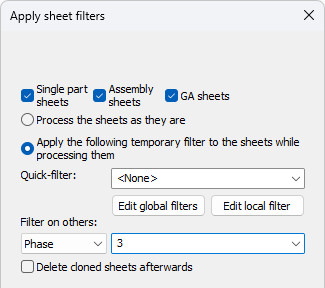
The options allow us to apply a certain filter on the sheets that will be printed or exported.
When we choose a filter here, then the sheets will be filtered like this :
- For shop drawings the amount of parts in the bill of material will be modified to be the amount of parts according to the chosen filter
- When the amount of parts on a sheet becomes 0 because of the filter, then the sheet will not be printed or exported.
- For GA sheets the chosen filter will be applied to all the views on the sheet. The parts that do not match the filter will be displayed in light grey in the views, or removed from the views.
The big advantage of this is that you do not need to create sheets for phase 1, 2, 3, ... separately.
The sheet filters are applied on newly cloned sheets. You can optionally delete the cloned sheets at the end of the print or export operation to avoid yourself the burden of having many sheets.
This way the actual filtering can be done at the last moment which can result in fewer sheets, fewer sheet checking work, and less complexity for the drafter.
 Print as PDF file - Will export the 2D sheet directly to a PDF file. The file will be located in the same folder as the location of the 3D drawing.
Print to a single PDF file - We can use this to publish a set of sheets into a single Pdf file. This supports combining a mix of format sizes into 1 pdf file.
 Export to DWG files. Exports the sheet to a DWG file. The file will be located in the same folder as the location of the 3D drawing.
 Generate DXF NC - Generates a DXF file for machine cutting if the sheet contains a plate. The file will be located in the same folder as the location of the 3D drawing.
 Generate DSTV NC - Generates a DSTV NC file for machine cutting/drilling if the sheet contains a member or a plate. The file will be located in the same folder as the location of the 3D drawing.
 Generate WrapAround for Pipes - Generates a Dxf file that contains a wraparound of CHS/Pipe profiles.
 Generate Step Files - Generate a step file for each position number in the drawing. At the time of writing this command will only work in BricsCAD and when the Communicator module is installed and licensed.
 Zoom and show properties for part - will zoom in and highlight just 1 occurrence of the 3D model - together with the Properties window
 Select all parts in 3D - will zoom in and highlight all the 3D models that are drawn on the sheet
 Isolate all parts in 3D - This tool will hide all the 3D models that are not drawn on the sheet
 Change Scale / Format / Project data - will allow you to change the sheet size, scale and project data of the selected sheet. The project data refers to the project data used in the title block. Enabling this checkbox will refresh the title block with the latest Project data as set in the 3D model.
 Refresh views - When you perform this function on a General Arrangement view, all of the views on the sheet will be refreshed. All the changes you made to the 3D model up to this point will be adopted by the view(s).
If you run this tool on a non-expired shop drawing, then the BOM on the sheet will be renewed so that it matches the current amount of parts in the 3D model.
If you run this tool on an expired shop drawing, then you will be prompted to 'match up' the sheet to a new 3D model.
 Sheet properties - This will enable you to edit the properties of the currently active sheet, but only work with the currently active sheet.