
Sheet and view numbering
Automatic assignment of Sheet and View numbers
Sheets and views are automatically numbered based on a template string that allows you to choose the prefix, suffix and start number.
The numbers are assigned sequentially, based on time of creation, but they can be updated later.
Automatic assignment of sheet numbers is determined by the template string that can be found in the workshop settings :
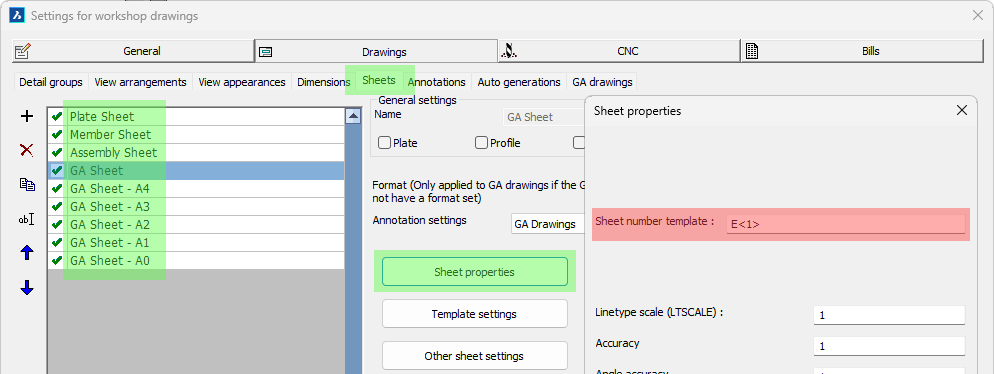
The links for getting to the location of the sheet number template text are highlighted in green
Automatic assignment of view numbers is determined by the template string that can be found in the workshop settings :
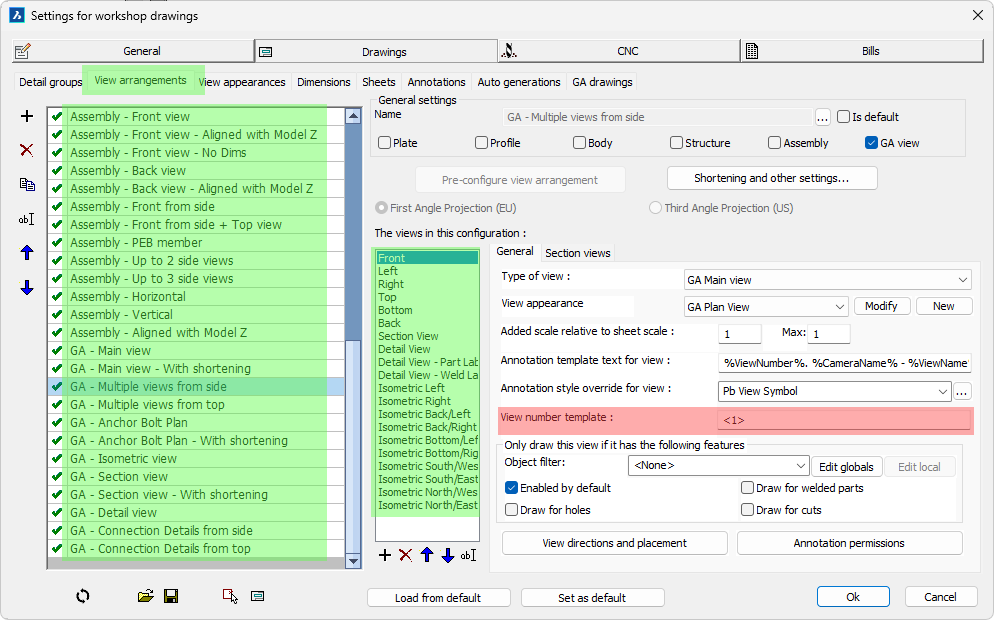
The links for getting to the location of the view number template text are highlighted in green
Some more information about the view or sheet number template text
For most sheets and views the text template is <1>. The number between brackets tells Parabuild that a number should be used starting from 1.
Some example template texts are :
- If the template is <100> then the start number should be 100 so the first 99 numbers will not be used.
- If the template is <A> then the result is A, and the next ones will be B, C, etc... This is typically used for section views on assembly drawings.
- If the template is D<1> then the result will be D1, D2, etc...
- If the template is GA<1> R2 then the result will be GA1 R2, GA2 R2, GA3 R2, etc...
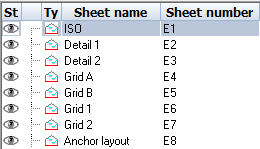 Renumbering sheets
Once a sheet has been created, the number can still be modified afterwards with the following method.
The sheet number can also be used inside the sheet name, which gives you an additional option for your sheet naming strategy.
The sheet number can be changed in the sheet properties which is accessible by right-clicking on a sheet in the sheets manager.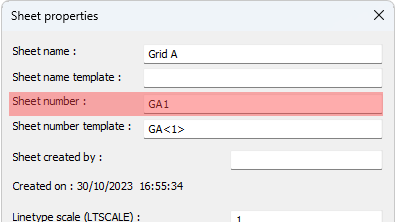
Note Whenever you change a sheet number manually in the properties Parabuild will renumber other sheets to avoid conflicts when needed.
Renumbering views
The number of existing views can be changed on a view per view basis in the View properties :
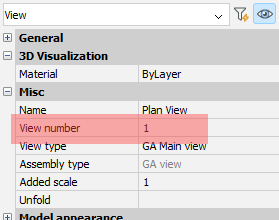
When you change a view number this way then Parabuild may change the view numbers of other views on the sheet automatically in order to avoid same-number views.
If there are many views on the sheet then it may become hard to set the view numbers the way you want because of this.
The view renumbering command resolves this issue.
View Renumbering command
Command name : PrB_RenumberViews
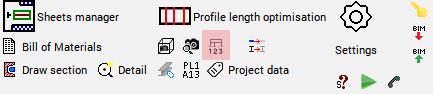
This command allows you to change the sequential numbering of the views while still respecting the number text template of each view.
The first thing this command asks for is the start number for the first view.
After that you should select each view that needs to be renumbered starting with the view that needs to receive the lowest number, and each view that you select after that will get a higher number.
It is not necessary to select all the views on the sheet. The views that you did not select will be untouched if their view numbers do not conflict with the new view numbers that were assigned during this command.
Note Whenever you change a view number in the properties or through the numbering command Parabuild will renumber other views to avoid same-number views when needed.