
User Interface
This dialog can be accessed from the main Parabuild Global settings:
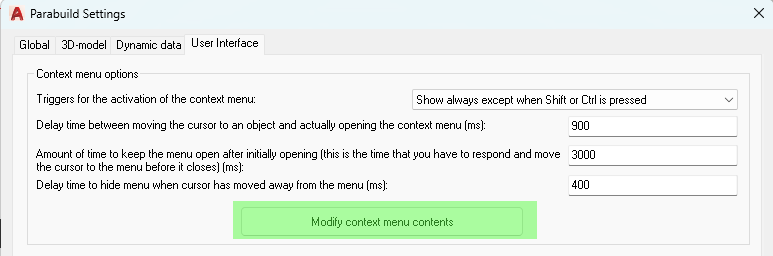
Here we can change the user interface behavior of specific Parabuild tools, for now only the context menu.
The context menu can appear on screen when no command is active.
The settings presented for the context menu are the following :
Triggers for the activation of the context menu - Choose when the context menu may appear. Set this to the Shift option if you never want the context menu to never appear automatically on screen unless asked for.
The following options are available for this setting :
- Disable the context menu - This disables the context menu altogether
- Show always except when Shift or Ctrl is pressed - This is the default. The menu will appear whenever there is an object under the cursor
- Show only when no objects are selected - The menu will always appear when there is an object under the except AND no objects are selected (see AutoCAD PICKFIRST help)
- Show only when 1 or more objects are selected - The menu will only appear when an object is under the cursor AND one or more objects are selected (see AutoCAD PICKFIRST help)
- Show only when Shift is pressed - The menu will only appear when there is an object under the cursor and the Shift key is pressed at the same time
- Show only when Shift is pressed and objects are selected - The menu will only appear when there is an object under the cursor and the Shift key is pressed, and there are one or more objects selected at the same time
- Show only when right-clicking - The menu will only appear when there is an object under the cursor and the right mouse-button is clicked
Delay time between moving the cursor to an object and actually opening the context menu - Increase this value if you find that the menu pops up too often while you are moving the cursor.
Amount of time to keep the menu open after initially opening - Increase this if you find that you do not have enough time to move the cursor to the menu to keep it open
Delay time to hide menu when cursor has moved away - Increase this time when you find that the context menu closes too quickly when you are browsing in the menu
Modify contents of the Context menu
The properties and actions that are proposed in the context menu can be fully tailored to your own needs and customs.
You can use the object type or any filter to influence what is shown in the menu.
This will open the following dialog which contains a list of entries.
Each entry has a set of filters and a set of properties/actions to be added to the menu if the filters are valid.
The order of the list is important because it will influence the amount and order of the items in the menu.
We will explain the purpose of each setting here after :
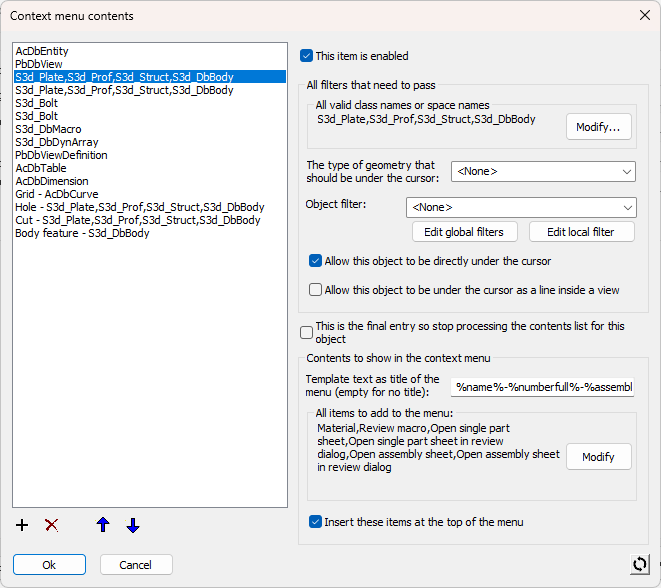
Enable this item - This will make the item do nothing so that it does not have to be removed
All valid class names or space names - You can enter multiple object class names or space names here to limit when these properties will be shown. This is a fast detection that will not slow down the menu.
The valid class names are :
- S3d_Plate
- S3d_Prof
- S3d_Bolt
- S3d_Struct
- S3d_DbBody
- S3d_DbMacro
- S3d_DbDynArray
- PbDbViewDefinition
- PbDbTag
- The class names as described in ObjectARX which also allows parent classes for example : AcDbTable, AcDbDimension, AcDbCurve, and more : https://help.autodesk.com/view/OARXMAC/2025/ENU/?guid=OARXMAC-RefGuide-AcDb_Classes
- To learn the name of a line or polyline (LWPOLYLINE) you can use the LIST command on that object
The valid space names are :
- Modelspace
- Layout
- Part sheet
- Assembly sheet
- GA sheet
The type of geometry that should be under the cursor - Use this setting to filter on some predefined objects such as the grid lines, and on Parabuild sub geometries such as holes and cuts. This is a slightly slower test that may slow down the menu slightly.
Object filter - You can use any of the predefined or custom object filters here. This is a more intensive test that may slow down the menu when there are many filters in the list. Avoid using this if the filter can be achieved with the other 2 filter settings.
Allow this object to be directly under the cursor - When this is enabled, then the properties will be shown when the cursor is on top of the object(s) in the above 3 filter values.
Allow this object to be under the cursor as a line inside a view - When this is enabled, then the properties will be shown when the cursor is on top of a line in a view and that line is linked to the object(s) in the above 3 filter values.
Note
All of the above filters need to pass in order for this entry to be used. If a filter is empty then it will always pass.
All of the settings below will be used only when the filters pass.
This is the final entry so stop processing contents list for this object - Enable this to stop processing the list for the object so that no further properties/actions will be accumulated in the context menu. This will only take effect when the entry has passed the above filters.
Template text as title of the menu - Use a template text to display a description of the geometry on the first row of the context menu :

Leave this empty if you do not want a title.
Parabuild will take the template text of the first valid entry that is not empty.
All items to add to the menu - Specify all of the properties and actions that should be added to the context menu when this entry passes the filters.
Insert these items at the top of the menu - Enable this to influence the sorting of the properties in the menu. The current properties will appear prominently at the top of the list.
All the properties that are available in AutoCAD/BricsCAD are also available in the context menu, and more. And we can choose what to show based on filters, making it extremely adaptable. This means for example you can modify the bolt assembly or diameter directly from a 2D View. Try it out!
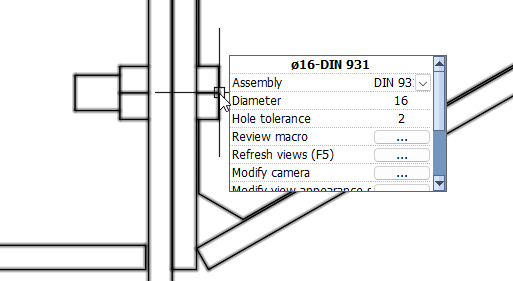
In the above 2D GA drawing example we see a mix of properties for the bolt, which is under the cursor but we are seeing the properties of the bolt in 3D. But after the properties of the bolt some properties of the view itself are also shown.
Modify the menu so that it shows only the most often used properties/actions for that object or subpart, so that you can work faster not having to search for icons or properties. In several situations this makes the context menu more powerful than the properties panel.