
Filter and Clone sheets
This feature can be accessed from the Print all sheets tools, or when printing a selection of sheets, or when Right-clicking on sheets to clone a selection of sheets.
It allows us to make copies of a certain sub-selection of sheets such as a particular phase.
The cloned sheets will contain the correct amount of parts for the filter that you chose, and sheets without parts that passed the filter will be skipped. This allows for workflows with fewer sheets to create and clean up, and only generating the filtered clones when needed (at the last moment when printing, for example).
This feature is accessible from the following 2 commands/tools :
1. All printing tools (where it is called Apply sheet filters)
When starting one of the print/publish jobs and the clone&filter prompt is enabled in the print&publish settings, then you will get the opportunity to apply filters to the sheets, clone these filtered sheets, and then print only those filtered sheets. The cloned sheets can then be removed automatically after the print job.
3. When exporting sheets (where it is called Apply sheet filters)
2. Filter&Clone sheets directly
Cloning sheets can be done directly by right-clicking on sheets in the sheets manager.
This method of cloning works exactly the same as filter&clone before printing, but when running the feature directly the sheets are cloned and kept. This allows you to review the cloned sheets before printing them.
For both the Apply Sheet filters during print and Filter and clone directly the same dialog box is displayed.
The options in this dialog are explained hereafter :
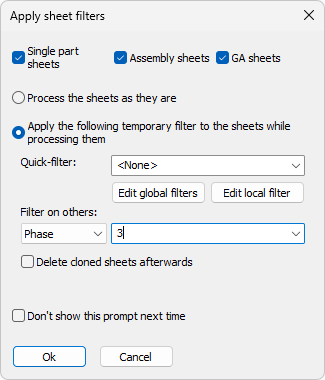
Single part sheets - Enable this if you want to process all single-part sheets. If this dialog is shown during a print or export action, then disabling this will remove all single-part sheets from the print/export action as well.
Assembly sheets - Enable this if you want to process all assembly sheets. If this dialog is shown during a print or export action, then disabling this will remove all assembly sheets from the print/export action as well.
GA sheets - Enable this if you want to process all GA sheets. If this dialog is shown during a print or export action, then disabling this will remove all GA sheets from the print/export action as well.
Process the sheets as they are - Enable this if you do not want to use the filter&clone feature during a print or export action. This option is only shown when printing or exporting sheets.
Apply the following temporary filter to the sheets while processing them - Enable this if you want to use the filter&clone feature during a print or export action. The below filters will become active. This option is only shown when printing or exporting sheets.
Quick-filter - Use this to quickly choose a globally stored object filter, or temporarily create a new local filter for this time only.
Filter on others - Use this to quickly filter on a single property value. This could for example be used to filter on parts that have a particular phase. This additional way of filtering is offered here because the filter can be set with less clicks.
Note If both the Quick-filter and the Filter on others are set then they will be combined. The parts will need to pass both filters, otherwise the sheet will not be processed and will be ignored.
How the filtering works
The filter(s) that we choose here will cause the sheets to be filtered like this :
- For shop drawings the amount of parts in the bill of material will be modified to be the amount of parts according to the chosen filter
- When the amount of parts on a sheet becomes 0 because of the filter, then the sheet will not be printed or exported.
- For GA sheets the chosen filter will be applied to all the views on the sheet. The parts that do not match the filter will be displayed in light grey in the views, or removed from the views.
The big advantage of this is that you do not need to create sheets for phase 1, 2, 3, ... separately.
The sheet filters are applied on newly cloned sheets. You can optionally delete the cloned sheets at the end of the print or export operation to avoid yourself the burden of having many sheets.
This way the actual filtering can be done at the last moment which can result in fewer sheets, fewer sheet checking work, and less complexity for the drafter.
Delete cloned sheets afterwards - This option is only shown when printing or exporting sheets.
Don't show this prompt next time - This option is only shown when printing or exporting sheets.