
Structure
The 'Structure' object type has the following headings:
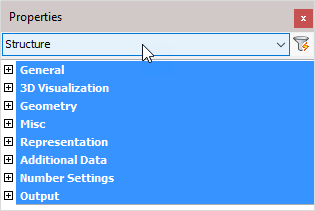
General: Is common to all object types, and covers general AutoCAD and BricsCAD settings, including: Color / Layer / Linetype / Linetype scale / Plot style / Lineweight / Transparency / Hyperlink / Handle /
3D Visualization: Is also common to all object types and includes: Material.
The material that is referred to here is only the visual representation material. For changing the actual material of parts, see the Additional Data section of plates, profiles or structures.
Geometry
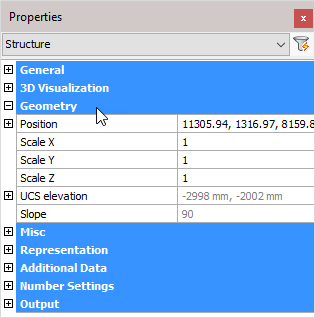
Note! - * indicates that the given value is a resultant of the sum of other values in the panel - and cannot be individually edited.
Position: Position of the structure (X, Y, and Z) relative to the UCS coordinates
Scale X: Scale factor X
Scale Y: Scale factor Y
Scale Z: Scale factor Z
UCS elevation: * UCS elevation (Reference)
Slope: * Slope angle relative to the horizontal plane (Reference)
Misc
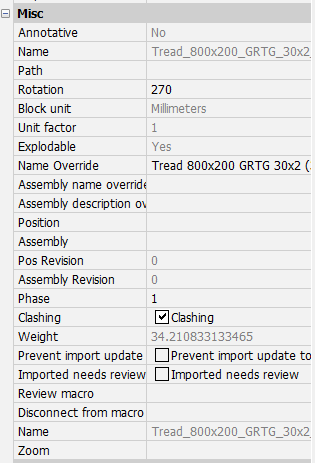
Note! - * indicates that the given value is a resultant of the sum of other values in the panel - and cannot be individually edited.
Annotative - * This is an AutoCAD / BricsCAD setting of the block reference. A structure is a block reference with extra data that Parabuild adds to it.
Name: * This is the structure name used in the parts lists and workshop drawings. This is an AutoCAD / BricsCAD setting of the block reference. A structure is a block reference with extra data that Parabuild adds to it.
Path: This is an AutoCAD / BricsCAD setting of the block reference. A structure is a block reference with extra data that Parabuild adds to it.
Rotation: This is an AutoCAD / BricsCAD setting of the block reference. A structure is a block reference with extra data that Parabuild adds to it.
Block unit: * This is an AutoCAD / BricsCAD setting of the block reference. A structure is a block reference with extra data that Parabuild adds to it. This sets block units to meters / mm / inches.
Unit factor: * This is an AutoCAD / BricsCAD setting of the block reference. A structure is a block reference with extra data that Parabuild adds to it.
Explodable: * This is an AutoCAD / BricsCAD setting of the block reference. A structure is a block reference with extra data that Parabuild adds to it.
Name override: The replacement of the normal structure name. This replacement name will be used in all part lists and workshop drawings.
Assembly name/description override - This property is useful to be used in bills. These properties can be a template string combining any number of properties, such as the structural type, material, main part name, etc...
This property can also be automatically assigned using template drawings or by structural type classification.
When the property was not individually set in the properties of the part then the default template string is used for that assembly. This default can be determined by the user in the Global settings dialog box.
When neither the assembly property or drawing default was set, the name of the main part is used instead.
This property is accessible from the advanced properties dialog box for profiles, structures and volumes
The names PbColMarkName and PbMarkDescription can be used in bills and annotations to display the value of this property.
Position: * The number automatically given to elements by Parabuild. Elements that are the same, (same dimensions, holes, sections) are given the same position number. These positions are partially adaptable with prefixes and suffixes, see Number settings.
Assembly: * Assembly number
Pos revision: This value is automatically assigned by Parabuild. Whenever the part is created or modified, then it will get the current revision that is currently active in the Revisions manager.
Assembly revision: This value is automatically assigned by Parabuild. Whenever the assembly's parts or the distance between the parts has modified, then it will get the current revision that is currently active in the Revisions manager.
Phase: The project phase of the selected element.
Clashing: This is set to yes or no and refers to whether the profile is currently clashing with other elements or not. This property is automatically set by the clash control, and is only included in properties for search objectives. For more information read the chapter Clash Check
Weight: * Calculated weight of the selected member
Prevent import update to model: Activating the checkbox will prevent any import update to the model. This refers to CIS/2 or Ifc incremental imports.
Imported needs review: This value will be set automatically for parts that were updated after an incremental CIS/2 or Ifc import.
Review macro: Will open the Macro review dialog, where the macro may be viewed and/or edited
Disconnect from macro - This action button will remove all the constraints that define this part if a macro is owning the part. The part will become an unconstrained object and will from there on behave like any normal object drawn in AutoCAD/BricsCAD. It will be possible to move, rotate and stretch the part with all of the available AutoCAD/BricsCAD commands.
Zoom: Zoom to the extents of the selected structure
Representation
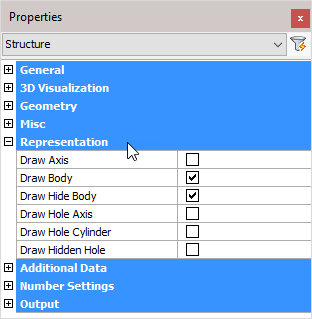
Draw Axis: Draws the Axis of a profile
Draw Body: Draws the complete 3D-model of the profile in 2D wireframe
Draw Hide Body: Draws the complete 3D-model of the profile in 3D visual styles
Draw Hole Axis: Draws the axis of every hole in the structure
Draw Hole Cylinder: Draws the cylindrical path of all holes in the structure in 2D wireframe
Draw Hidden Hole: Draws the cylindrical path of all holes in the structure in 3D visual styles.
One can activate the hole subtraction here for a better visual representation, but do note that when a bolt is drawn through this hole, you would not see the difference. On top of that, the subtraction is heavy on resources. This is the reason why this option is disabled by default.
The edges of the hole are always drawn independently of this setting.
Additional Data
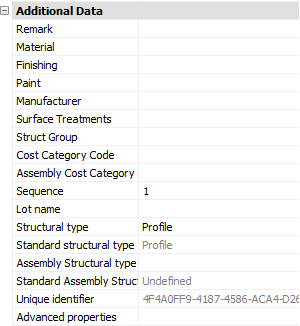
Remark: Can be used in a variety of ways. This field is maintained for every element. It has its own column in the part lists, and can be used for sorting part lists and workshop drawings. This property has no further influence
Material: This field also has its own column in the part lists and can be used for sorting, but this has a direct influence on the position number (and consequently the mark number). Two elements that are identical, but have another material assigned to, will be given another position number. This enables a total categorization of different materials in part lists and workshop drawings.
The weight factor of every material can be changed in Parabuild Properties - Global - Material/Finishing . Parabuild will use this weight factor to calculate the weight in the part lists.
Paint: You can enter a free paint color text here, for indicating to the shop that the part needs to be painted
Object color: This property refers to the inherent color of the object. Contrary to the paint color this property does not necessary call for an action in the shop. This would be used for example when detailing and fabricating parts in FRP Material which comes in various colors.
The name PbColObjectColor can be used in bills and annotations to display the value of this property.
Manufacturer: Same as Remark
Surface Treatments: Will open the Surface Treatments dialog
Struct Group: This property can be freely used for the user's own purpose.
Cost category Code: These codes are usually determined while a quote for the project is made. This code can then later be assigned to the 3D model when the project was ordered. This way the parts can be traced from estimation to production and to completion inside ERP/MIS software. This value is exported to KISS files.
Assembly Cost category Code: See ‘Cost category Code’
Sequence: The erection sequence of the part. This value is exported to KISS files
Lot Name: The lot that the part belongs to. This value is exported to KISS files
Structural Type: For example: Bracing/Rafter/Stringer/Handrail/Post/etc.... You can use the variable %PbColStructuralType% to use this property in Bill of materials or annotations
Assembly Structural Type: For example: Stair/Railing/etc.... You can use the variable %PbColAssemblyStructuralType% to use this property in Bill of materials or annotations
Unique Identifier: The Unique identifier is allocated by Parabuild, or received from a CIS/2 or Ifc file import.
Advanced properties - Clicking on this button will open the advanced properties dialog, which contains the following properties for structures :
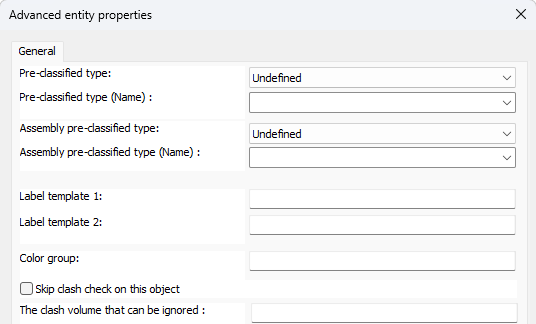
- Pre-classified type and Assembly pre-classified type - This property is only useful for template drawings of connections/macros.
This setting is a good alternative way to automatically assign structural types when it is too difficult or impossible to create filters that detect the type of part automatically.
To make this work, you first have to set the pre-classified structural type here, and then save the template drawing in the library. Then the next time when the template drawing is used and inserted into the drawing, then this pre-classified structural type will be set in the structural type property of the part upon insertion.
The purpose of this is to have an influence on the automatic assignment of the structural part type property, without having to rely on the automatic Structural types assignments through Object Filters. - Label template 1/2 - This allows us to assign per-entity unique information on annotations. How to do this is explained in the Label templates topic.
- Color group - This property can be used to group parts into color groups as an additional way to categorize the objects. The color groups are usable in filters and are especially useful to be used in the color schemas in the Visibility manager.
This property is accessible from the advanced properties dialog box. This property is available to macros, arrays, bolts, plates, profiles, structures, and volumes. - Skip clash check on this object - When this option is enabled then the object will not take part in the clash checking routine. Care should be taken when using this function because failure to erect the structure may occur if clashing elements are allowed. This property was only created for cases like flat bars or round bars being used for bracings. These well bend when erected but drawing this bend in the 3D model just to prevent the clash detection is quite cumbersome.
This property is accessible from the advanced properties dialog box for plates, profiles and volumes. For bolts it is available directly on the properties panel. - The clash volume that can be ignored - Enter the volume that the clash control should ignore when the object is clashing with another object. If the clash volume is smaller than the given volume then the objects will not clash. If the volume is larger then the objects will be designated as clashing.
Number Settings
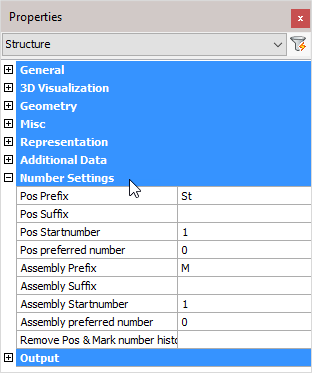
Pos Prefix: Determines the prefix of the position number.
Pos Suffix: Determines the suffix of the position number.
Pos Start number: Determines the start number of the position number.
Pos preferred number: Forces Parabuild to use the preferred number as position number. Parabuild will comply if this number is not already in use by a different part.
Assembly Prefix: Determines the prefix of the assembly/mark number.
Assembly Suffix: Determines the prefix of the assembly/mark number.
Assembly Start number: Determines the start number of the assembly/mark number.
Assembly preferred number: Forces Parabuild to use the preferred number as assembly/mark number. Parabuild will comply if this number is not already in use by a different part.
Remove Pos & Mark number history: Lets Parabuild forget the preferred numbers and also the previous numbers that the part had.
Note! For more information on any of these items, refer to Numbering of elements
Output
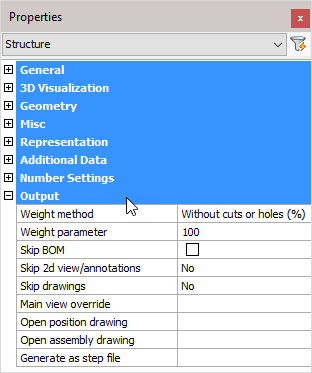
Weight method:
- Without cuts or holes (%): The weight of the complete length of the profile will be calculated, without subtracting the holes and cuts. In the next property you can adjust the percentage of this value that should be used.
- Cut: The cuts in the profiles are subtracted to calculate the weight.
- Cut and drilled: The cuts and the holes are subtracted to calculate the weight
- Fixed value: The value you enter in the next property will be used as the weight for this element in kg or lbs (This value will be taken over in the BOMs without any adjustments).
Weight parameter: This property is being used in combination with the above properties ‘Default’ and ‘Fixed value’
Skip BOM: If this property to ‘Yes’, this element will not appear in the BOMs
Skip 2D view/annotations: Adjust this to skip this element for the 3D annotations or the 3D annotations + 2D view
Skip drawings: You can skip only the Position drawings, only the mark drawings, or both the Position and Mark drawings
Main view override: Select a plane that determines the main view's direction
Open position drawing: Will open the position drawing of the selected part
Open assembly drawing: Will open the assembly/mark drawing of the selected assembly
Generate as a STEP file: STEP file is a CAD file format, usually used to share 3D models between users with different CAD systems. Note! This command will only work in BricsCAD and when the Communicator module is installed and licensed. For more information, refer to Document generation Settings > Generate STEP Files