
CNC settings
This topic explains the settings on the CNC tab of the Document generation Settings dialog box.
This tab contains all of the settings for the creation of CNC files.

For each type of CNC there is a sub tab but there is also a main CNC group tab which drives the generation of CNC files.
The 5 different tabs on this dialog are each explained below.
CNC groups
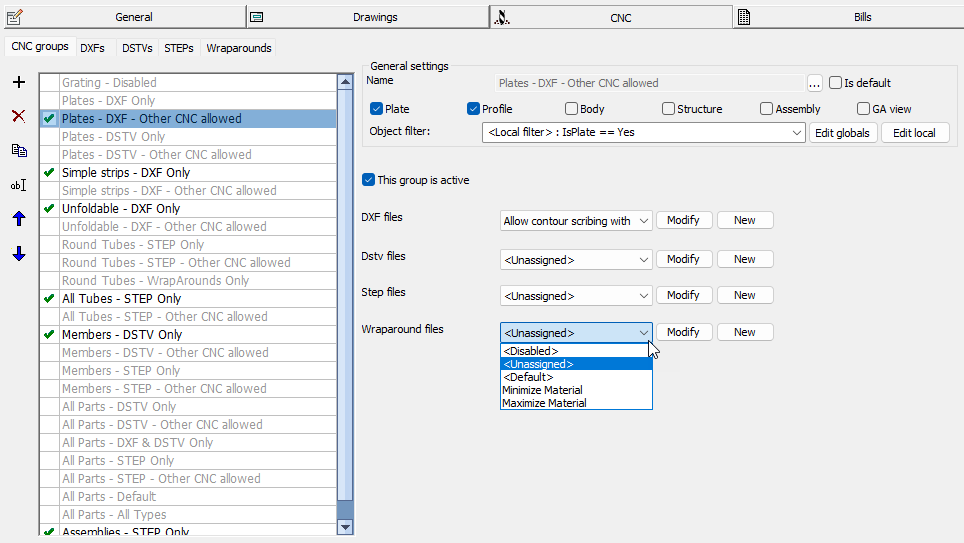
This list of CNC groups will determine how the generate tools will write DXF, DSTV, STEP, and WrapAround files.
Here we will not only determine what settings to use per type of CNC file, but also what CNC files to generate per part.
The greyed out groups in this list are not active so they will be ignored for the generation of CNC files.
Note that the order of the items on this list has a big influence on the result of the CNC files generation.
If the part matches the filter in the General settings of the group then the group will be used for that part.
If it does not then the next group in the list will be used until a group that matches is found.
Each of the 4 CNC file types can be chosen per group. Each of them refer to the sub-tabs DXFs, DSTVs, STEPs or Wraparounds.
For example we can choose between these scenarios for the CNC generation of plates :
- Generate only the Dxf file (enable Plates - DXF only and disable all other plate items in the list)
- Generate both Dxf and Dstv files (enable Plates - DXF - Other CNC allowed and also Plates - DSTV Only and disable all other plate items in the list)
- Generate only Dstv file (enable Plates - DSTV only and disable all other plate items in the list)
Look at the naming of the items in the list to understand what their purpose is.
The naming DXF only or DSTV only are used that way just to clarify that generation for that part stops when the list item is valid for the part.
It is a mechanism used to not generate 2 CNC files for the same part, which could otherwise cause over production.
The options per group are explored here :
Plate, Profile, Body, Structure, and Assembly - Enable all of the different types of parts that are valid for this group in the list
Object filter - If further filtering is needed then we can do that here. For example filter out grating or folded parts. This tool is explained in the Object filtering topic.
This group is active - The option to disable a group was created so that many defaults can be created here without being active. You can quickly change the entire CNC generation behavior by activating and deactivating certain groups
DXF files - Choose here how to handle the generation of DXF Files when all of the filters of this group are valid for the part.
These are the available methods :
- <Disabled> - Use this option if a DXF file for this part is not desired. The part will not get a DXF file and the other groups in the list below this group will not be processed anymore.
- <Unassigned> - Use this option to continue processing the list of groups without generating a DXF file. This can still give the process the option to let another group generate a DXF file for this part
- <Default> - If a DXF file is desired for this part then you can choose this option which will use the default setting in the list of DXF Settings. The default setting is the one that has the Is default checkbox active in the DXF settings. It can be found here :

- And then all of the existing DXF setting names - You can directly choose one of the DXF Settings names that should be used if a DXF file is desired for this part.
Dstv files - Choose here how to handle the generation of Dstv Files when all of the filters of this group are valid for the part.
The available methods work just the same as the Dxf files explained above.
Step files - Choose here how to handle the generation of Step Files when all of the filters of this group are valid for the part.
The available methods work just the same as the Dxf files explained above.
Wraparound files - Choose here how to handle the generation of Wraparound Files when all of the filters of this group are valid for the part.
The available methods work just the same as the Dxf files explained above.
The DXFs tab
This tab lists all of the available DXF configurations.
In this list itself it is not determined which of these DXF configurations will be used. That is determined by either the CNC group, or by the manually override option in the Generate DXF Files dialog box.
We could therefore have configurations in this list that are not being used at all.
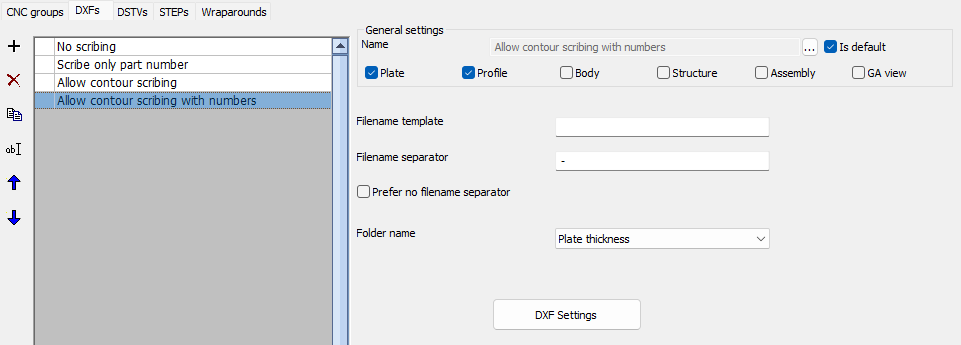
The options per DXF configuration are explored here :
Is default - When the CNC group has it's DXF configuration set on <Default>, then the first DXF configuration in this list with the Is default option active will be used.
Plate, Profile, Body, Structure, and Assembly - Enable all of the different types of parts that are valid for this configuration
Filename template - When this field is empty Parabuild will fill in the necessary part number and/or assembly number. You can enter text freely in this field and also use properties or queries between %% to insert certain values of the part into the filename.
Depending on the CNC contour and matchline settings Parabuild needs the part number and maybe even the assembly number to be in the filename. If you omit the part or assembly number while it is necessary then Parabuild will forcibly append it to the filename during generation.
Filename separator - This is the separating character to be used between the part and assembly numbers
This is not used when the filename is fully defined in the filename template above
Prefer no filename separator - If this option is activated, then the separator will be omitted if that is at all possible. It is impossible to omit when the part number ends with a digit and the assembly number starts with a digit which would make it impossible to recognize the separation between the 2 digits.
Folder name - This option will create a variable sub folder under which the DXF files should be written. A good example for this is the plate thickness, which will sort all of the DXF files with the same thickness together into the same folder
DXF Settings - Use this button to go to the more advanced settings for the DXF file generation
The DSTVs tab
This tab lists all of the available Dstv configurations.
In this list itself it is not determined which of these Dstv configurations will be used. That is determined by either the CNC group, or by the manually override option in the Generate Dstv Files dialog box.
We could therefore have configurations in this list that are not being used at all.
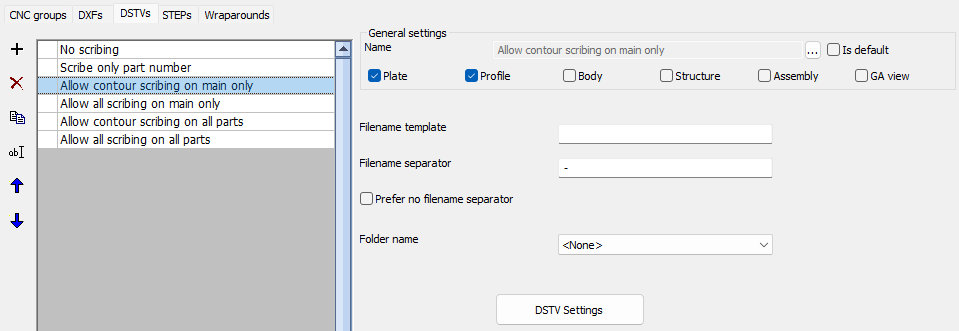
The options per DSTV configuration are explored here :
Is default - When the CNC group has it's DSTV configuration set on <Default>, then the first DSTV configuration in this list with the Is default option active will be used.
Plate, Profile, Body, Structure, and Assembly - Enable all of the different types of parts that are valid for this configuration
Filename template - When this field is empty Parabuild will fill in the necessary part number and/or assembly number. You can enter text freely in this field and also use properties or queries between %% to insert certain values of the part into the filename.
Depending on the CNC contour and matchline settings Parabuild needs the part number and maybe even the assembly number to be in the filename. If you omit the part or assembly number while it is necessary then Parabuild will forcibly append it to the filename during generation.
Filename separator - This is the separating character to be used between the part and assembly numbers
This is not used when the filename is fully defined in the filename template above
Prefer no filename separator - If this option is activated, then the separator will be omitted if that is at all possible. It is impossible to omit when the part number ends with a digit and the assembly number starts with a digit which would make it impossible to recognize the separation between the 2 digits.
Folder name - This option will create a variable sub folder under which the DSTV files should be written. A good example for this is the material, which will sort all of the Dstv files with the same thickness together into the same folder
DSTV Settings - Use this button to go to the more advanced settings for the DSTV file generation
The STEPs tab
This tab lists all of the available STEP configurations.
In this list itself it is not determined which of these STEP configurations will be used. That is determined by either the CNC group, or by the manually override option in the Generate Step Files dialog box.
We could therefore have configurations in this list that are not being used at all.
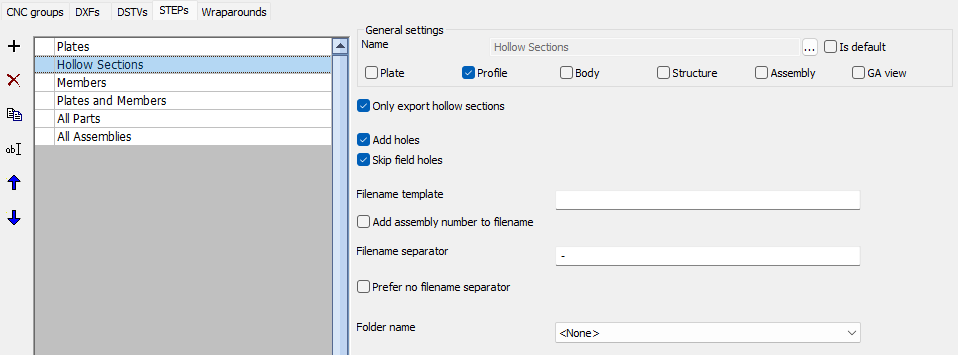
The options per STEP configuration are explored here :
Is default - When the CNC group has it's STEP configuration set on <Default>, then the first DSTV configuration in this list with the Is default option active will be used.
Plate, Profile, Body, Structure, and Assembly - Enable all of the different types of parts that are valid for this configuration
Only export hollow sections - When this is enabled, only profiles with a hollow section will get a step file. It would be possible to apply this filter upfront in the CNC group, but it is here as well for extra convenience.
Add holes - When this is enabled, site holes will be subtracted from the solids in the STEP file
Skip field holes - When this is enabled, field holes will not be subtracted from the solids in the STEP file
Filename template - When this field is empty Parabuild will fill in the necessary part number and/or assembly number. You can enter text freely in this field and also use properties or queries between %% to insert certain values of the part into the filename.
Depending on the CNC contour and matchline settings Parabuild needs the part number and maybe even the assembly number to be in the filename. If you omit the part or assembly number while it is necessary then Parabuild will forcibly append it to the filename during generation.
Add assembly number to filename - Adding the assembly number to the filename is important when an entire assembly is exported to a STEP file.
Filename separator - This is the separating character to be used between the part and assembly numbers
This is not used when the filename is fully defined in the filename template above
Prefer no filename separator - If this option is activated, then the separator will be omitted if that is at all possible. It is impossible to omit when the part number ends with a digit and the assembly number starts with a digit which would make it impossible to recognize the separation between the 2 digits.
Folder name - This option will create a variable sub folder under which the DSTV files should be written. A good example for this is the material, which will sort all of the Dstv files with the same thickness together into the same folder
The Wraparounds tab
This tab lists all of the available wraparound configurations.
In this list itself it is not determined which of these wraparound configurations will be used. That is determined by either the CNC group, or by the manually override option in the Generate Wraparound Files dialog box.
We could therefore have configurations in this list that are not being used at all.
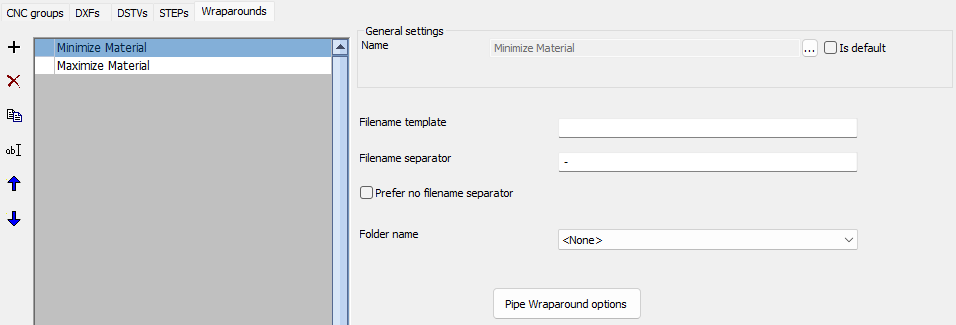
The options per Wraparound configuration are explored here :
Is default - When the CNC group has it's Wraparound configuration set on <Default>, then the first DSTV configuration in this list with the Is default option active will be used.
Filename template - When this field is empty Parabuild will fill in the necessary part number and/or assembly number. You can enter text freely in this field and also use properties or queries between %% to insert certain values of the part into the filename.
Depending on the CNC contour and matchline settings Parabuild needs the part number and maybe even the assembly number to be in the filename. If you omit the part or assembly number while it is necessary then Parabuild will forcibly append it to the filename during generation.
Filename separator - This is the separating character to be used between the part and assembly numbers
This is not used when the filename is fully defined in the filename template above
Prefer no filename separator - If this option is activated, then the separator will be omitted if that is at all possible. It is impossible to omit when the part number ends with a digit and the assembly number starts with a digit which would make it impossible to recognize the separation between the 2 digits.
Folder name - This option will create a variable sub folder under which the DSTV files should be written. A good example for this is the material, which will sort all of the Dstv files with the same thickness together into the same folder
Pipe Wraparound settings - Use this button to go to the more advanced settings for the Wraparound file generation